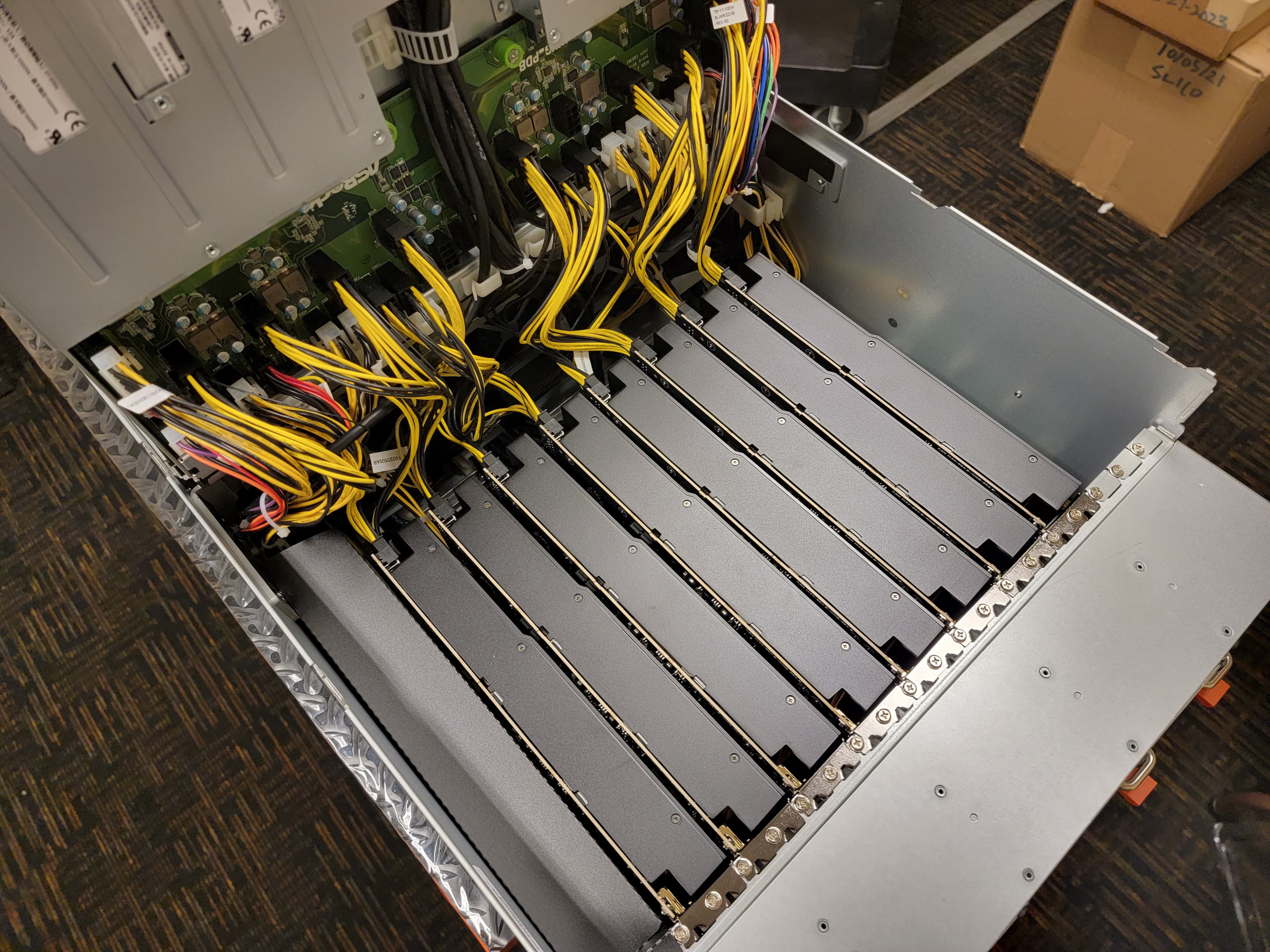
GPU Virtualization with VFIO, NVIDIA AI Enterprise, and AMD SR-IOV
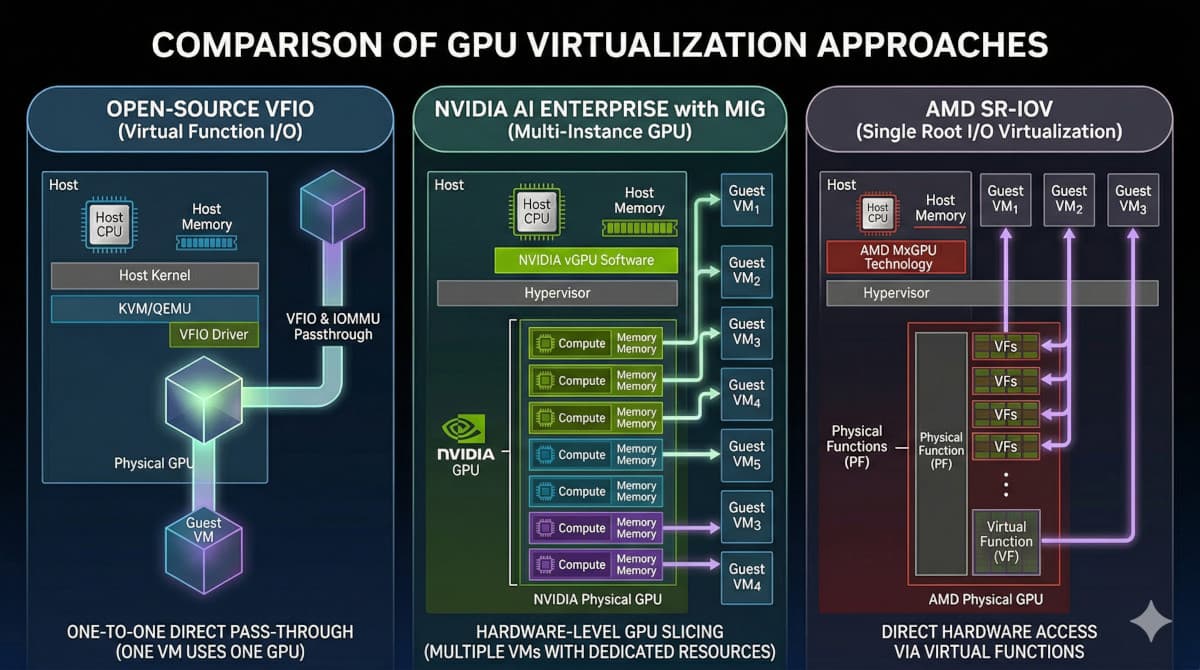
There is no single GPU virtualization stack that works across all GPUs. Datacenter and consumer GPUs require different approaches. There are differences between virtualization of NVIDIA and AMD cards. Even within NVIDIA's own enterprise AI ecosystem there are multiple virtualization paths. If you're building a cloud GPU platform that supports hardware from multiple vendors, you're going to end up implementing and maintaining several distinct virtualization strategies.
At CloudRift, we support all modern virtualization paths: VFIO passthrough for whole-GPU allocation, NVIDIA MIG with AI Enterprise vGPU for fractional NVIDIA GPUs, and AMD SR-IOV for AMD Instinct cards. This article explains the mechanics behind each one — the host-side driver lifecycle, the domain XML configuration, and the trade-offs.
I'll assume you're familiar with basic Linux virtualization concepts (KVM, QEMU, libvirt). If you need a refresher on host-side IOMMU and VFIO setup, see our earlier guide: Host Setup for QEMU/KVM GPU Passthrough with VFIO on Linux.
The foundation: QEMU/KVM with libvirt
Regardless of GPU vendor, all our VMs run on the same hypervisor stack: QEMU/KVM managed through libvirt. A few configuration choices matter a lot when GPUs are involved.
Machine type and PCI topology
We use the q35 chipset with the pc-q35 machine type. Unlike the older i440fx, q35 provides native PCIe support, which is essential for GPU passthrough — GPUs are PCIe devices and expect a PCIe bus topology.
<type arch="x86_64" machine="q35">hvm</type>
Everything described here works with any Linux distribution, but most of our host providers run Ubuntu and that's what we test against. The examples below assume Ubuntu 22.04 or 24.04.
Use a modern QEMU and OVMF. The versions shipped with Ubuntu 22.04 LTS (QEMU 6.2, OVMF 2022.02) are too old for reliable GPU passthrough with current hardware. We target QEMU 9.0+, OVMF 2024.02, and libvirt 10.6+, installed from the Canonical Server Backports PPA and Ubuntu Noble packages respectively. The specific bugs that forced the upgrades: OVMF 2022.02 hangs during boot when initializing RTX GPUs on some platforms, and QEMU 6.2 hits a pci_irq_handler assertion failure during GPU passthrough with AMD MI350X.
One critical setting is the PCI hole size. Modern data center GPUs (H100, B200) have BARs that can exceed 128 GB. QEMU has internal logic for estimating the PCIe hole size, but we found that it doesn't always allocate enough space. The root cause is that PCI BAR allocation is an interplay between three parties — the host kernel (which assigns physical BAR addresses), the guest UEFI firmware (OVMF, which allocates the guest-side PCI address space), and QEMU (which maps between them). Because QEMU doesn't have full visibility into how OVMF will lay out the address space, its built-in heuristic can underestimate the required hole, especially with multiple large GPUs.
We work around this by computing the hole size ourselves based on actual BAR sizes reported by the hardware. In the domain XML, this appears as a <pcihole64> element on the PCIe root controller:
<controller type="pci" model="pcie-root">
  <pcihole64 unit="G">1024</pcihole64>
</controller>
Getting this wrong results in the guest failing to map GPU BARs — you'll see "BAR X: can't assign mem" errors in dmesg inside the VM.
CPU mode
We run all VMs in host-passthrough mode with migratable=on:
<cpu mode="host-passthrough" check="none" migratable="on"/>
This exposes the host CPU's full instruction set to the guest, which is important for GPU workloads that rely on specific CPU features (AVX-512 for preprocessing, for instance). The migratable=on flag filters out features that would break live migration, though in practice we rarely migrate GPU VMs since the GPU itself isn't migratable.
PCIe root ports
Each GPU (or GPU group, in the case of multi-function devices with audio) gets its own PCIe root port controller. This keeps GPU IOMMU groups clean inside the guest and avoids conflicts:
<controller type="pci" model="pcie-root-port" index="10" id="pcie.10">
  <target chassis="10" port="0xa"/>
</controller>
On consumer GPU rigs (RTX 4090, 5090), we use a flat topology — all GPUs share the same bus and each gets a different slot. On multi-GPU servers (8×H100, 8×B200), we use a deep topology — each GPU sits behind its own PCIe root port on a separate bus.
Flat topology (consumer GPUs — faster to allocate, smaller PCIe hole):
<!-- All GPUs on bus 0x00, varying slot -->
<hostdev mode="subsystem" type="pci" managed="no" multifunction="on">
  <source><address domain="0x0000" bus="0x82" slot="0x00" function="0x00"/></source>
  <address type="pci" bus="0x00" slot="0x10" function="0"/>  <!-- GPU 0 -->
</hostdev>
<hostdev mode="subsystem" type="pci" managed="no" multifunction="on">
  <source><address domain="0x0000" bus="0xa2" slot="0x00" function="0x00"/></source>
  <address type="pci" bus="0x00" slot="0x11" function="0"/>  <!-- GPU 1 -->
</hostdev>
Deep topology (data center GPUs — one root port per GPU):
<!-- Each GPU behind its own root port, on its own bus -->
<controller type="pci" model="pcie-root-port" index="1" id="pcie.1"/>
<hostdev mode="subsystem" type="pci" managed="no">
  <source><address domain="0x0000" bus="0x03" slot="0x00" function="0x00"/></source>
  <address type="pci" bus="0x01" slot="0x00" function="0"/>  <!-- GPU 0, bus 1 -->
</hostdev>
<controller type="pci" model="pcie-root-port" index="2" id="pcie.2"/>
<hostdev mode="subsystem" type="pci" managed="no">
  <source><address domain="0x0000" bus="0x13" slot="0x00" function="0x00"/></source>
  <address type="pci" bus="0x02" slot="0x00" function="0"/>  <!-- GPU 1, bus 2 -->
</hostdev>
The flat layout is preferable when possible — it requires fewer PCIe root port controllers, results in a smaller PCIe hole requirement, and is faster for QEMU to set up. But data center GPUs work more reliably behind dedicated root ports.
ROM BAR
We always disable ROM BAR for passthrough GPUs:
<rom bar="off"/>
Without this, OVMF (the UEFI firmware) tries to load the GPU's option ROM during boot. With newer GPU firmware, this can cause hangs or extremely slow boot times. Since we're not using the GPU for console output (cloud VMs use serial/VNC), there's no reason to load the ROM.
NVIDIA: full GPU passthrough via VFIO
This is the straightforward mode. One physical GPU goes to one VM. It's what we use for consumer GPUs (RTX 4090, RTX 5090, RTX PRO 6000) and for data center GPUs when the tenant needs the whole card.
Fair warning: NVIDIA's documentation around GPU virtualization is a maze. There's VFIO passthrough, mdev (mediated devices), vGPU, SR-IOV, MIG — and the terminology overlaps in confusing ways across different driver generations and product lines. If you're making changes to your virtualization stack, expect to have a conversation with NVIDIA's support team. The docs alone won't get you there.
Using host and guest GPUs simultaneously
One scenario worth mentioning: what if you want to use some GPUs on the host (e.g., for LLM inference) while simultaneously passing others through to VMs? This is possible, but only with the open-source NVIDIA kernel driver stack. You can leave the host GPUs bound to the open nvidia driver and bind the passthrough GPUs to vfio-pci independently. NVIDIA AI Enterprise doesn't support this mixed mode, at least accordingly to response to our support inquiry in February 2026.
The tricky part is the driver lifecycle on the host. NVIDIA's kernel driver is notoriously sticky, and you have to fully release the GPU before VFIO can claim it. Here's the sequence:
Preparation (host → VFIO):
- Load the
vfio-pcikernel module - Stop the processes holding the GPU like the DCGM exporter (if running — it holds a handle on the GPU)
- Disable persistence mode and stop
nvidia-persistenced - Unload NVIDIA kernel modules (
nvidia-uvm,nvidia-drm,nvidia-modeset,nvidia) - Unbind each GPU (and its audio function) from the
nvidiadriver - Bind each device to
vfio-pci - Wait for VFIO initialization (the device files under
/dev/vfio/need a moment to appear)
If any step fails — especially the module unload — something is still holding a reference to the GPU. Common culprits: an orphaned nvidia-smi process, a monitoring daemon, or a zombie compute process.
Return (VFIO → host):
When the VM shuts down, we reverse the process:
- Rebind GPU to the
nvidiadriver - Rebind the audio function to
snd_hda_intel - Start
nvidia-persistenced - Re-enable persistence mode
- Verify CUDA readiness with a quick device query. After rebinding, the GPU may appear in
nvidia-smibut still fail when accessed from a Docker container (you will get "no CUDA-capable device"). Running a short CUDA initialization on the host "warms up" the device and ensures the driver state is fully consistent.
Domain XML for VFIO passthrough
The GPU appears as a <hostdev> element with managed="no" — we handle driver binding ourselves rather than letting libvirt do it, because the multi-step NVIDIA teardown requires more control than libvirt's managed mode provides:
<hostdev mode="subsystem" type="pci" managed="no" multifunction="on">
  <driver name="vfio"/>
  <source>
    <address domain="0x0000" bus="0xc2" slot="0x00" function="0x00"/>
  </source>
  <address type="pci" domain="0x0000" bus="0x00" slot="0x13" function="0"/>
  <rom bar="off"/>
</hostdev>
The multifunction="on" attribute is relevant for consumer GPUs (RTX series), which have a companion HDA audio device at function 0x1. Both functions need to be in the same multifunction group for the guest to enumerate them correctly. Data center GPUs (H100, B200) don't have an audio function, so this attribute isn't needed for them.
NVIDIA: fractional GPUs with MIG and vGPU
NVIDIA's Multi-Instance GPU (MIG) technology lets you partition a single GPU into isolated instances, each with its own compute units, memory, and memory bandwidth.
How MIG works
MIG is available on data center GPUs (A100, H100, H200, B200) and creates hardware-level partitions. Unlike time-sharing (MPS), MIG instances get their own dedicated compute slices.
Each GPU supports a set of profiles. For example, an H100 with 80 GB HBM3 memory can be split into:
| Profile | GPU Slices | Memory | Use case |
|---|---|---|---|
1g.10gb | 1/7 | 10 GB | Small inference, experimentation |
2g.20gb | 2/7 | 20 GB | Medium inference workloads |
3g.40gb | 3/7 | 40 GB | Fine-tuning smaller models |
4g.40gb | 4/7 | 40 GB | Larger inference |
7g.80gb | 7/7 | 80 GB | Full GPU via MIG (for licensing consistency) |
The 7g.80gb profile gives you the entire GPU but through the MIG/vGPU pathway instead of VFIO passthrough. We use this when the node is configured for NVIDIA AI Enterprise licensing and all VMs need to go through the vGPU stack, even single-tenant ones.
An important constraint: you can't arbitrarily slice GPUs. Only specific profile combinations are allowed on a single GPU. The H100 has 7 GPC (Graphics Processing Cluster) slices, and profiles must tile across them without overlap. Here are the valid placement configurations for the H100 80GB:
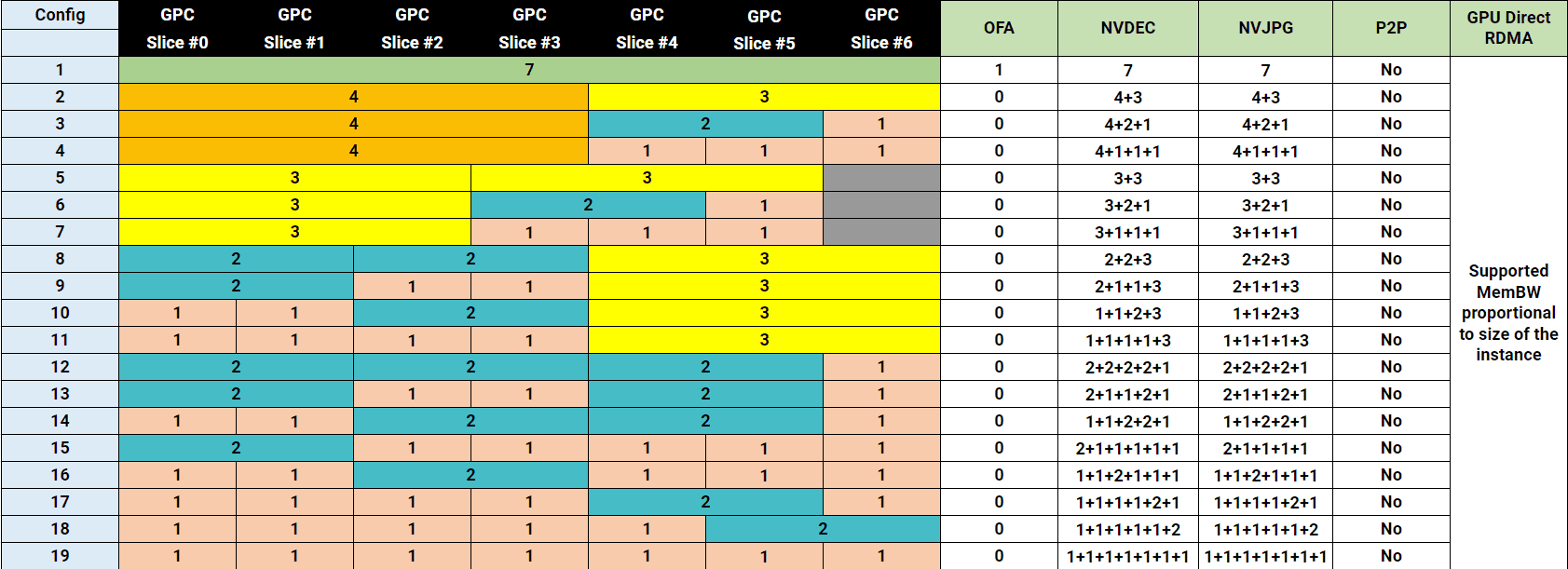
Configs 1-11 use 1g.10gb profiles, while configs 12-19 mix in 1g.20gb — double the memory, same compute, but consuming memory from 2 GPC slices so fewer fit. There's also a 1g.10gb+me variant that includes media engines (NVDEC/NVJPG).
Profile names and memory sizes vary by GPU model — H200 uses 1g.18gb, 2g.35gb, 3g.71gb, 7g.141gb, etc., but the slice tiling rules are the same.
MIG device creation
Creating a MIG instance requires several steps:
- Ensure the NVIDIA driver is loaded on the host (MIG is managed by the host driver, not VFIO)
- Enable MIG mode on the target GPU via
nvidia-smi - Query available profiles to get the GPU Instance Profile ID
- Create a GPU Instance (GI) using the profile ID:
nvidia-smi mig -i 0 -cgi 14 # Successfully created GPU instance ID 5 on GPU 0 using profile MIG 2g.35gb (ID 14) - Create a Compute Instance (CI) within the GI (or use
-Cwith-cgito do both in one step):nvidia-smi mig -i 0 -cgi 14 -C - Retrieve the vGPU BDF — each MIG instance has an associated SR-IOV Virtual Function. You can find the VF's BDF by reading the symlinks under
/sys/bus/pci/devices/<GPU_BDF>/virtfnN, then writing the appropriate vGPU type to the VF'snvidia/current_vgpu_typesysfs file. The resulting VF BDF is what gets passed to the VM via libvirt.
The key difference from full passthrough: the host NVIDIA driver stays loaded and managing the GPU. The MIG instance appears as a virtual device that gets passed to the guest via libvirt's <hostdev> mechanism. This in turn allows using host to access GPUs for specific purposes, for example, tracking utilization using NVIDIA DCGM.
Domain XML for MIG vGPU passthrough
The MIG vGPU device is attached to the VM the same way as a full GPU — via a <hostdev> element. The difference is the source address: instead of the physical GPU's BDF, you use the VF BDF that was assigned to the MIG instance:
<hostdev mode="subsystem" type="pci" managed="no">
  <driver name="vfio"/>
  <source>
    <address domain="0x0000" bus="0xdb" slot="0x00" function="0x04"/>
  </source>
  <address type="pci" domain="0x0000" bus="0x01" slot="0x00" function="0"/>
  <rom bar="off"/>
</hostdev>
Note there's no multifunction="on" here — MIG vGPU devices don't have a companion audio function. Otherwise the XML is identical to VFIO passthrough: managed="no", explicit <driver name="vfio"/>, and ROM BAR disabled.
NVIDIA AI Enterprise guest stack
Inside the VM, we install the NVIDIA AI Enterprise (NVAI) driver package rather than the standard driver. It can be downloaded from the NVIDIA licensing portal after purchasing a license. The NVAI guest driver is specifically designed for vGPU environments:
- Proprietary DKMS modules — the open-source NVIDIA driver doesn't support vGPU. We explicitly remove any
nvidia/x.y.z-openDKMS modules and install the proprietarynvidia/x.y.zmodules nvidia-gridd— the grid daemon that handles vGPU license checkout from a license servernvidia-persistenced— keeps the driver loaded even when no GPU applications are running- CUDA toolkit — installed in the guest for compute workloads
The guest image is built with these components baked in, so the VM boots with full GPU support ready. No driver installation on first boot.
MIG cleanup
When a VM is destroyed, we track its MIG instance IDs (stored in the domain's libvirt metadata) and destroy the corresponding GPU and Compute instances:
nvidia-smi mig -i 0 -dgi -gi 5
# Successfully destroyed GPU instance ID 5 from GPU 0
This releases the GPU slices back to the pool for the next tenant.
Licensing costs
NVIDIA AI Enterprise licensing is not cheap. At the time of writing, it costs roughly 32,000/year for the 8xGPU server. For H100 server over the 4-year lifetime it will increase you cost to own by 50% (you can save some by using 3-year or a lifetime subscription at the cost of higher upfront). This is one reason we primarily use VFIO passthrough for GPUs and only route through the vGPU stack when fractional allocation is needed. If a tenant rents a whole GPU, VFIO passthrough avoids the licensing overhead entirely.
AMD: SR-IOV with GIM and ROCm
AMD takes a slightly different approach to GPU virtualization. Interestingly, NVIDIA's vGPU stack also uses SR-IOV under the hood on supported data center GPUs — the host driver calls /usr/lib/nvidia/sriov-manage to enable SR-IOV Virtual Functions, and MIG instances are mapped onto those VFs. But NVIDIA layers its own abstractions on top: you create MIG instances first, then associate them with VFs and set a vGPU type via sysfs. AMD's approach is more direct — PCIe SR-IOV (Single Root I/O Virtualization) is the primary interface, the same technology network cards have used for years. The GIM driver creates VFs, and you pass them through with managed="yes". No intermediate abstraction.
Of the three virtualization modes we support, AMD SR-IOV was by far the easiest to implement. Standard PCIe mechanism, managed passthrough, no nvidia-smi invocations, no licensing hurdles, all images are easy to download and install, and it supports fractional GPU allocation out of the box. Good job, AMD.
How AMD SR-IOV differs
With SR-IOV, the GPU's Physical Function (PF) stays bound to the amdgpu driver on the host at all times. The GIM (GPU Instance Manager) driver creates Virtual Functions (VFs), each representing a slice of the GPU. These VFs are what get passed to VMs.
This means:
- No runtime driver switching — the
amdgpukernel module must be loaded when the host boots and stays loaded. - The host driver manages partitioning — similar to MIG in spirit, but implemented at the PCIe level rather than through a vendor-specific API.
- VFs are standard PCI devices — they show up in
lspci, have their own BDF addresses, and can be managed with standard PCI tooling.
In SPX (Single-GPU Instance) mode, each Physical Function exposes exactly one Virtual Function. This is equivalent to passing the whole GPU to a single VM, but through the SR-IOV pathway rather than full VFIO passthrough.
Managed passthrough
Because AMD's SR-IOV VFs are standard PCI virtual functions, we can let libvirt handle the VFIO binding automatically (managed="yes")
<hostdev mode="subsystem" type="pci" managed="yes">
  <source>
    <address domain="0x0000" bus="0x09" slot="0x01" function="0x0"/>
  </source>
  <address type="pci" domain="0x0000" bus="0x00" slot="0x10" function="0"/>
  <rom bar="off"/>
</hostdev>
Notice two differences from the NVIDIA XML:
managed="yes"— libvirt handles binding the VF tovfio-pciand unbinding it when the VM stops- No
<driver name="vfio"/>element — not needed when managed mode is active
ROCm guest stack
The guest-side setup for AMD involves the ROCm (Radeon Open Compute) software stack:
- HWE kernel — the default Ubuntu 24.04 kernel (6.8) is too old for ROCm's
amdgpuDKMS module. We install the Hardware Enablement kernel (6.11+) so DKMS can build against a compatible kernel. amdgpu-install— AMD's bootstrapper that sets up signed APT repositories. All packages are verified via AMD's GPG key.- ROCm toolkit with DKMS — the compute stack and kernel module for GPU access inside the guest.
- AMD SMI — AMD's equivalent of
nvidia-smifor GPU monitoring and management. - Group configuration — we ensure users are automatically added to the
renderandvideogroups so they can access the GPU device files without root.
Like our NVIDIA images, the ROCm stack is pre-installed in the guest image.
Fractional GPU allocation
AMD's SR-IOV implementation supports fractional GPU allocation natively — unlike NVIDIA, where fractional allocation requires the separate MIG mechanism. The GIM driver on the host can create multiple Virtual Functions per Physical Function, each representing a partition of the GPU's compute and memory resources.
The number and size of VFs is configured at the driver level through partition modes. AMD Instinct GPUs (MI300X, MI350X) support several:
- SPX (Single Partition eXtension) — 1 VF per PF. Whole GPU to one VM. This is what we currently use.
- DPX (Dual Partition) — 2 VFs per PF. Each VF gets half the GPU's compute and memory.
- QPX (Quad Partition) — 4 VFs per PF.
- CPX (Core Partition) — up to 8 VFs per PF on MI300X (one per XCD die).
Compared to NVIDIA MIG, AMD's partitioning is simpler to reason about: the mode is set at the driver/firmware level, the VFs appear as standard PCIe devices, and there are no profile compatibility constraints to worry about. The trade-off is less granularity — you can't mix partition sizes on the same GPU the way MIG allows (e.g., one 3/7 instance and one 4/7 instance).
From the libvirt perspective, there's no difference between a whole-GPU VF and a fractional VF. Both are standard PCIe virtual functions, both use managed="yes", and both get the same XML structure.
Comparison
Here's how the three approaches stack up:
| Open Source VFIO Passthrough | NVIDIA vGPU + MIG | AMD SR-IOV | |
|---|---|---|---|
| GPU allocation | Whole GPU | Whole or Fractional | Whole or Fractional |
| Host driver | vfio | nvidia-vfio or nvidia | amdgpu |
| Guest driver | Standard NVIDIA | NVAI Enterprise (proprietary) | Datacenter AMD Driver |
| Licensing | Free | NVAI Enterprise license | Free |
| Hardware isolation | Full (IOMMU) | Hardware-level (MIG + SR-IOV) | Hardware-level (SR-IOV) |
| Supported GPUs | All NVIDIA | A100, H100, H200, B200 | AMD Instinct (MI-series) |
| Host overhead | Minimal (driver unloaded) | NVIDIA driver + MIG management | amdgpu driver + GIM |
Closing thoughts
GPU virtualization is harder than CPU or network virtualization because GPUs were designed for bare-metal performance, not sharing. Both NVIDIA and AMD have made significant progress, but took slightly different approaches, where NVIDIA offers more flexibility (flexible MIG profile combinations), while AMD offers more simplicity (standard SR-IOV, virtual functions are managed by the driver).
If you want to try it out, you can rent GPU VMs on CloudRift — we have NVIDIA RTX, H100, H200, B200, and AMD Instinct machines available.