Feel the Power: Run ComfyUI on Cloud GPUs - Full VM Setup Guide
By Heiko Polinski•October 15, 2025
TutorialsComfyUIGPU RentalDocker
Running ComfyUI locally is great, but unless you're running a RTX 5090 or similar high end hardware, you will run into bottlenecks sooner than later.
So using cloud hosted GPUs from platforms like CloudRift will not only save your hardware, it's also give you much faster results. Plus you only pay for what you use.
In a previous article I gave you a walkthough on how to set up ComfyUI in a pre-configured container. Which is great to start out, but as soon as you want to add checkpoints and configure your workflows more, you'll need some additional freedom.
If that's what you're looking for, and you want to configure your own environment instead of using a pre-built container, this guide shows how to launch ComfyUI on a rented GPU-powered VM in minutes.
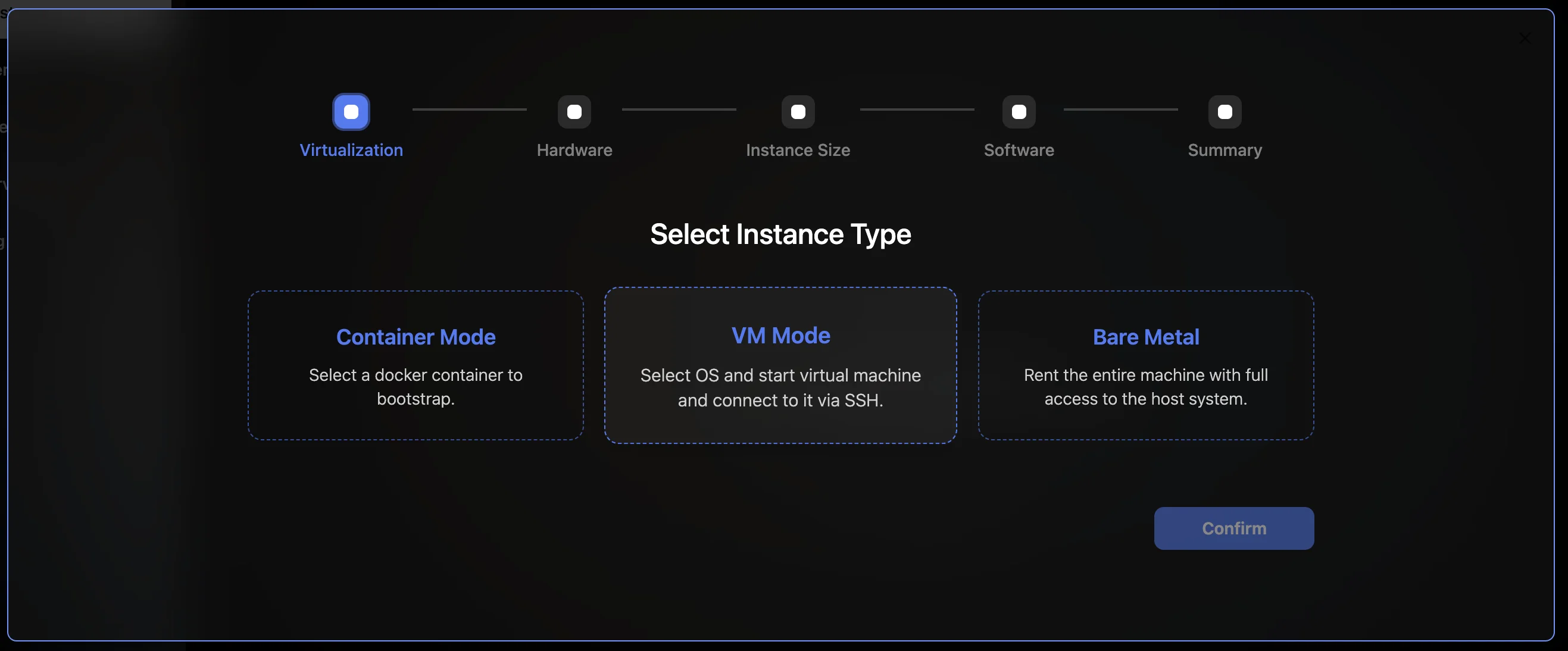
Click "New" and select "VM" under the Virtualization step
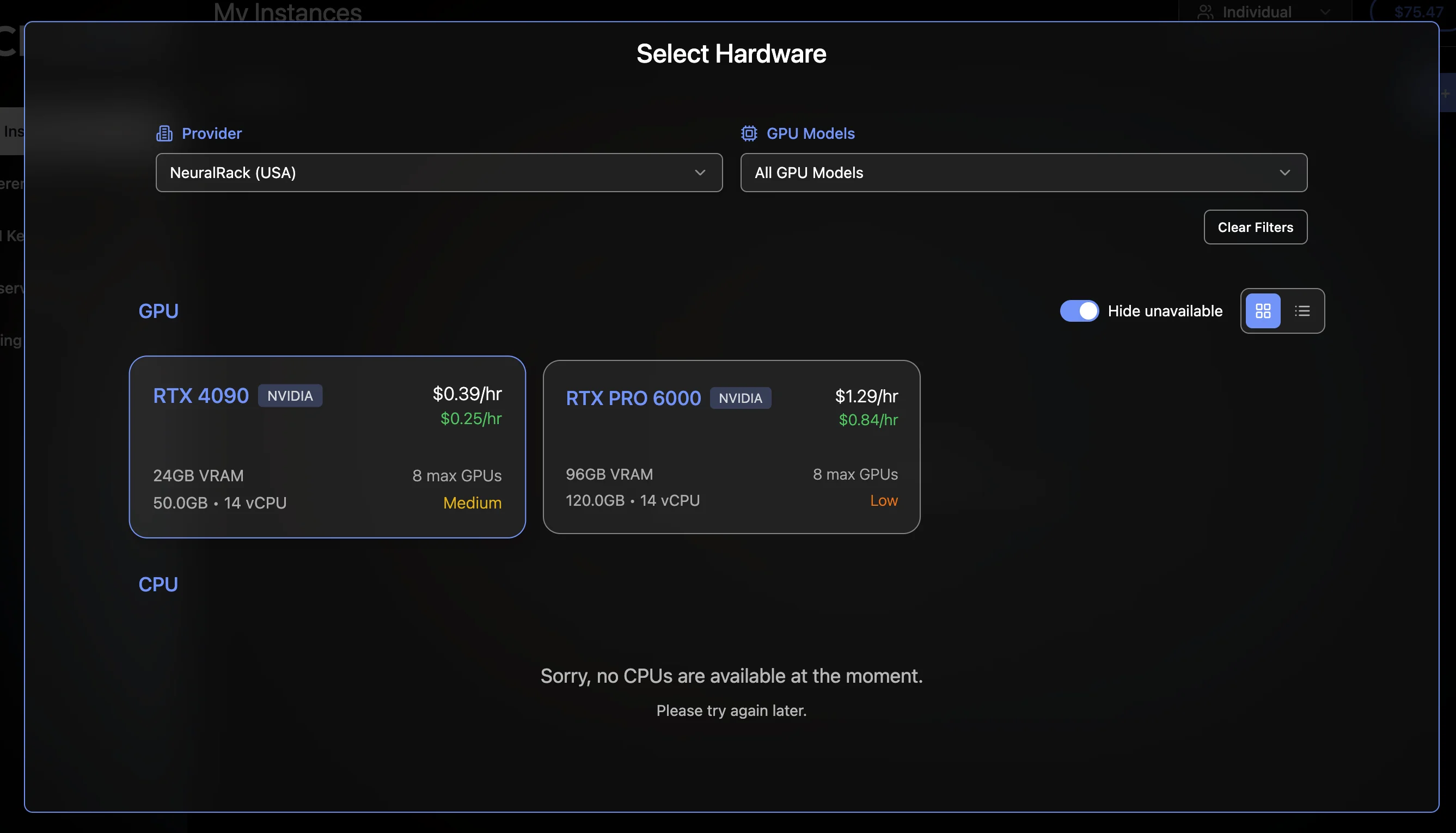
Select VM under the Virtualization stepChoose your preferred GPU model
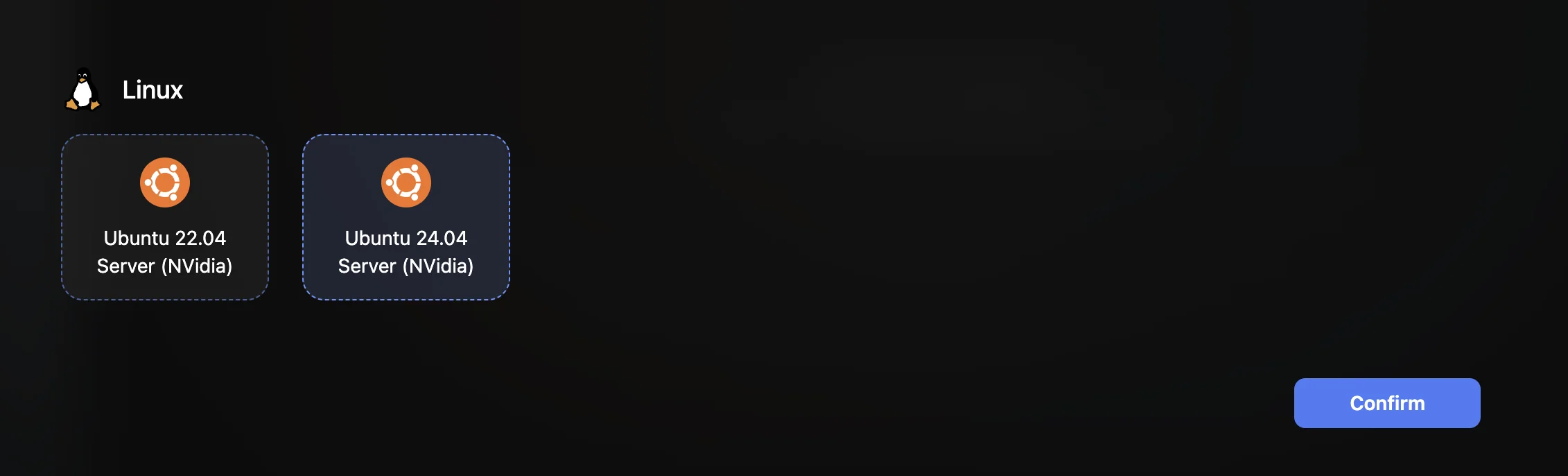
Choose Ubuntu 24.04 as your OS
Select Ubuntu 24.04 or 22.04 as your operating system
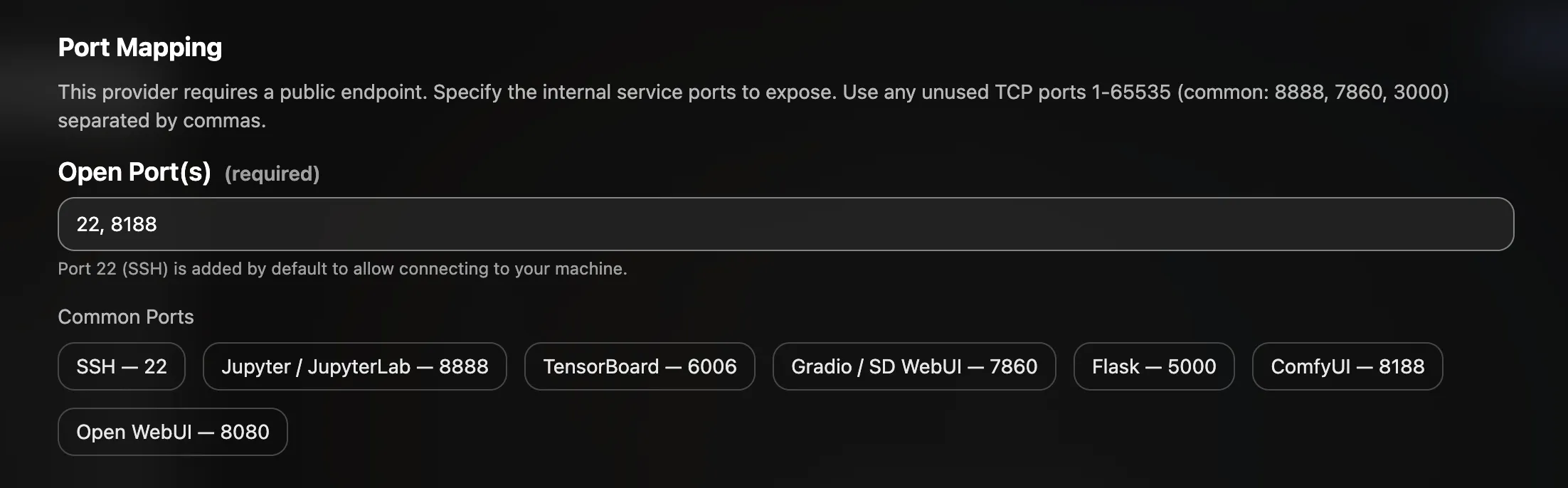
Note: Port Forwarding Setup
Some of our datacenter providers use shared public IPs with port forwarding. In this case, during the Software step of the rental process, you'll see a Port Mapping section. Make sure to add port 8188 there — this is the port ComfyUI uses, and it needs to be exposed for you to access the UI in your browser.
Add port 8188 in the Port Mapping section during VM setup
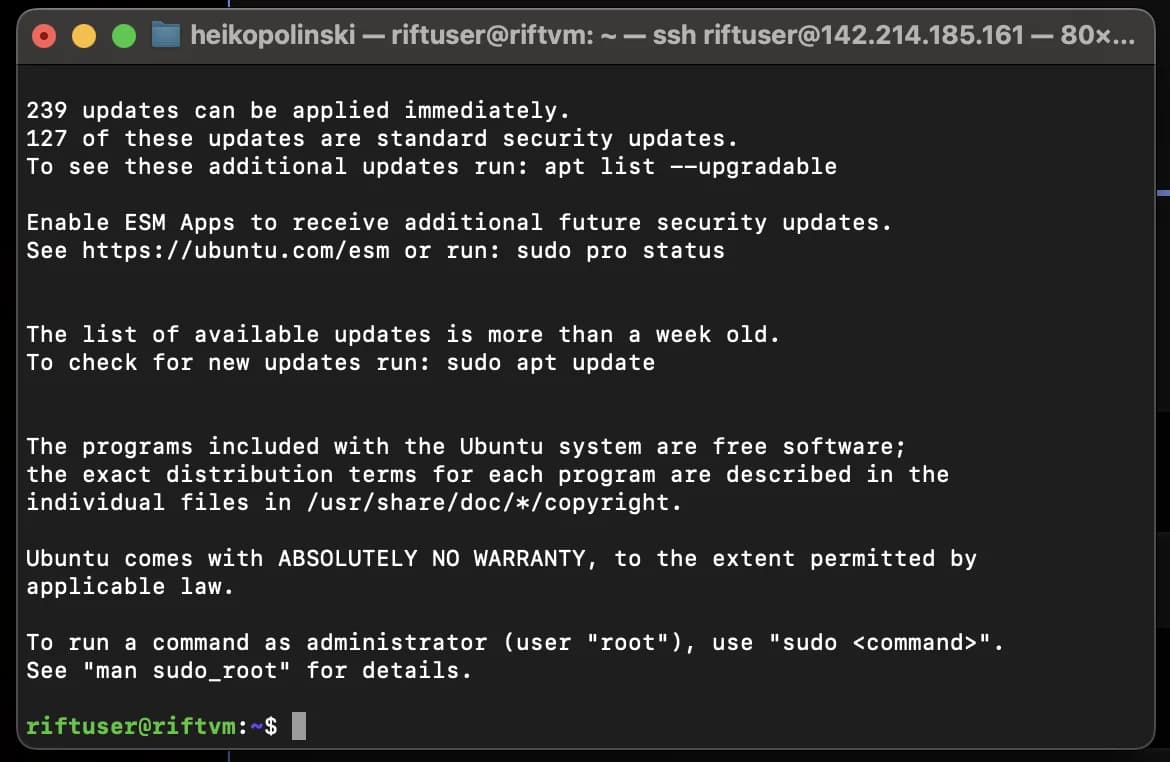
To connect to your VM via SSH, run the following command.
Open your terminal (or command prompt on Windows) and run:
ssh riftuser@<VM_IP>
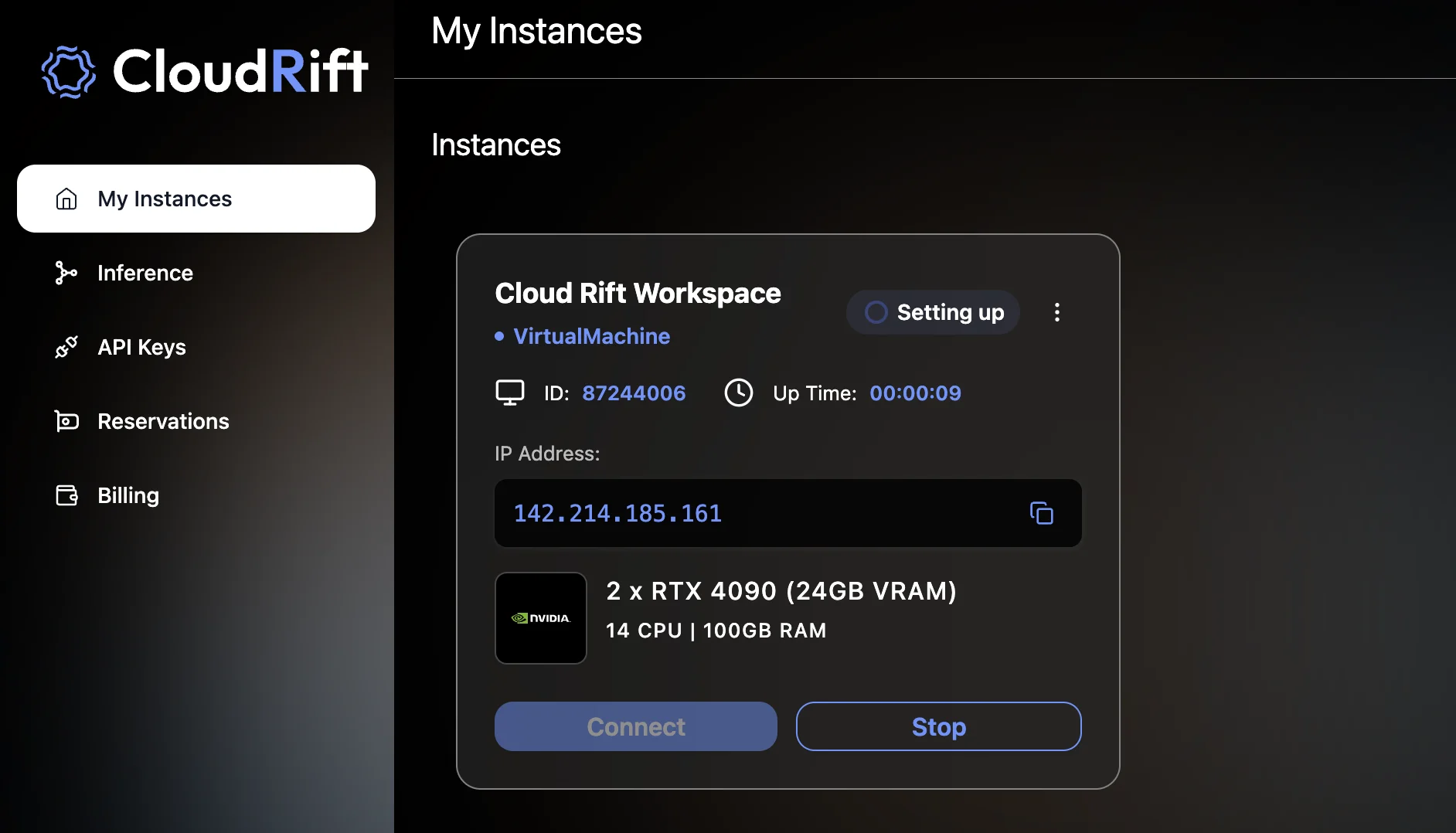
Replace <VM_IP> with your actual VM's IP address. You'll find it in your Dashboard.
Find your VM's IP address in the CloudRift dashboardSuccessfully connected to your VM via SSH
Troubleshooting: Host Key Verification Failed
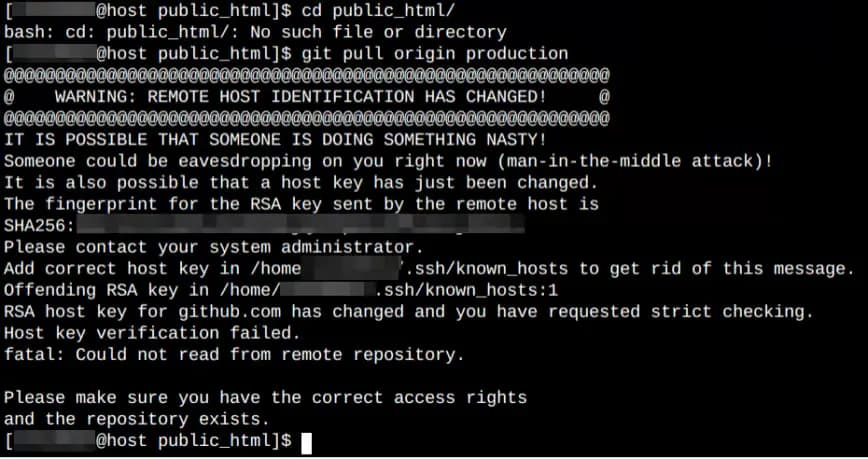
Fix Host Key Verification Failed
Sometimes when connecting, your terminal may throw a "Host Key Verification Failed" error with a message like "Someone could be eavesdropping on you right now (man-in-the-middle attack)!" or "It is also possible that a host key has just been changed." This typically happens when a VM's IP address has been reassigned or the server has been re-provisioned.
Step 1: Remove the old host key from your known_hosts file:
ssh-keygen -R"[<IP>]:<port>"
Replace <IP> and <port> with your VM's IP address and SSH port. For example: ssh-keygen -R "[211.21.50.85]:57019"
If your VM uses a standard SSH port (22) without port forwarding, you can simply use: ssh-keygen -R <IP>
Step 2: Try to connect to your VM again:
ssh riftuser@<VM_IP>
When you run this command, you should see a warning message similar to the following:
The authenticity of host '<hostname> (<IP address>)' can't be established.
RSA key fingerprint is <fingerprint>.
Are you sure you want to continue connecting (yes/no)?
Type yes and press Enter to continue. You should now be connected to the remote server, and the host key for that server will be added to your known_hosts file.
An empty list confirms Docker is working without sudo.
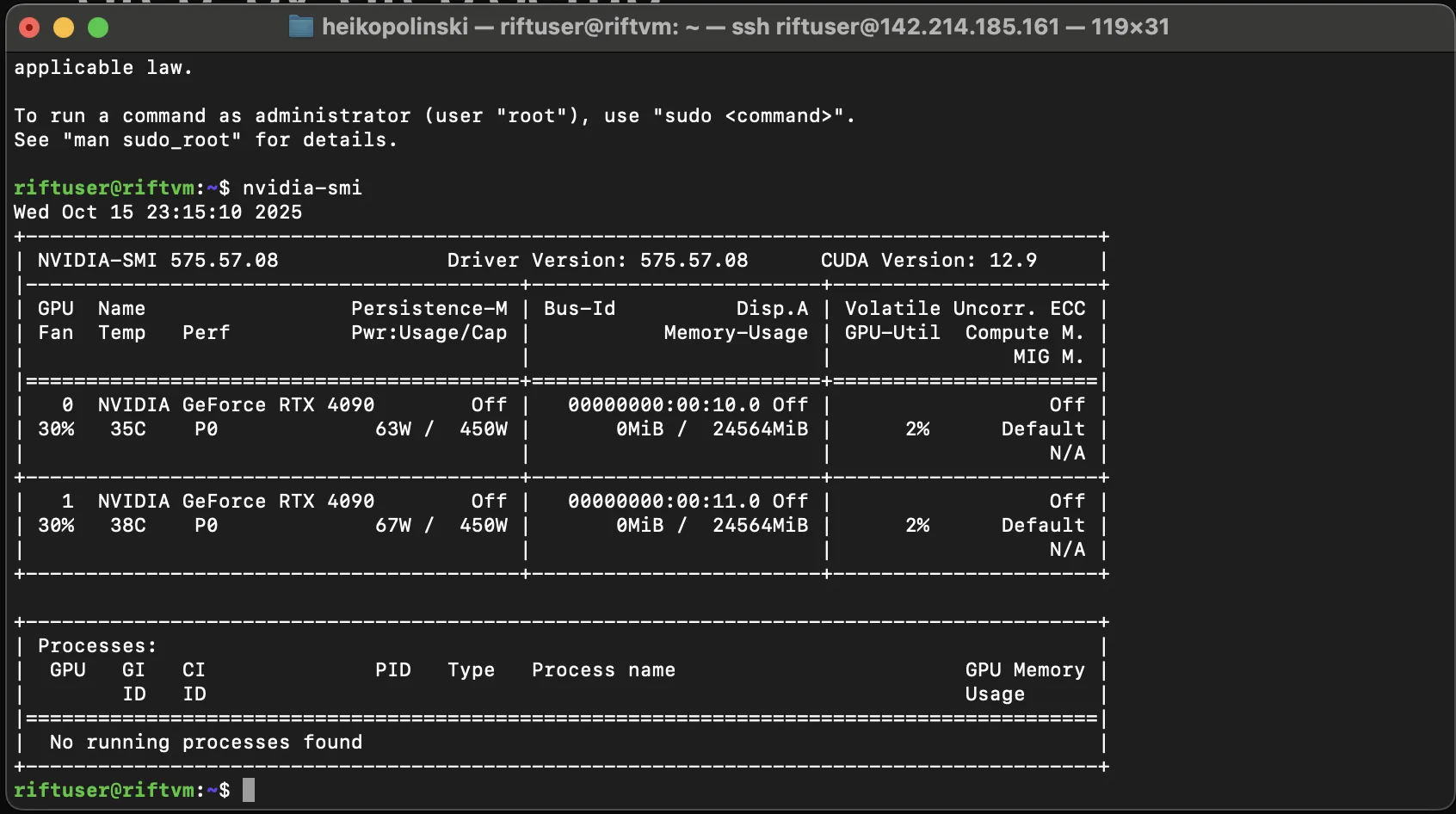
5. Confirm GPU access (optional)
For Ubuntu 22.04:
docker run --rm--gpus all nvidia/cuda:12.3.2-base-ubuntu22.04 nvidia-smi
For Ubuntu 24.04:
docker run --rm--gpus all nvidia/cuda:12.4.0-base-ubuntu24.04 nvidia-smi
6. Launch ComfyUI
mkdir-p ~/comfyui/models/checkpoints
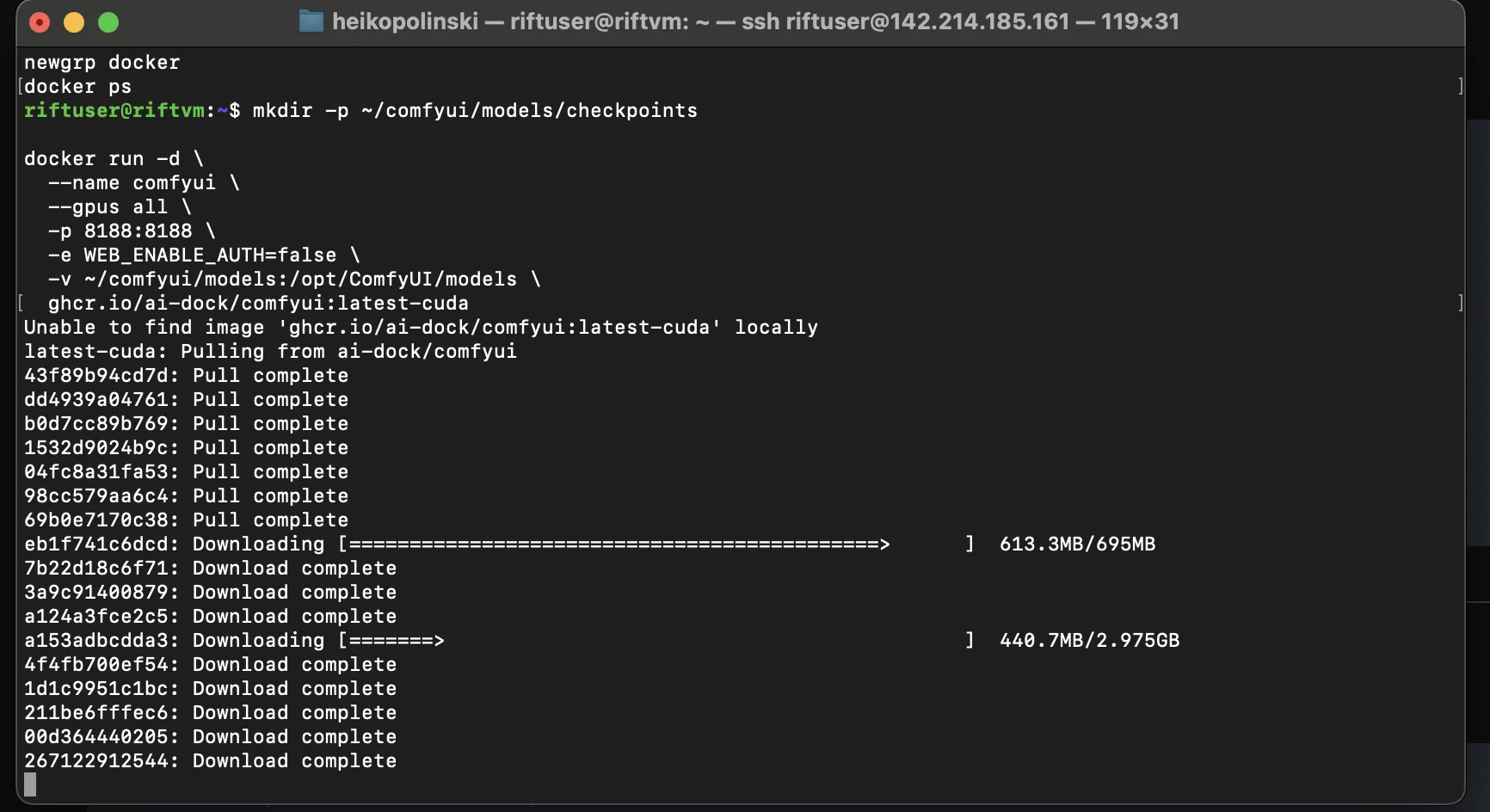
docker run -d\--name comfyui \--gpus all \-p8188:8188 \-eWEB_ENABLE_AUTH=false \-v ~/comfyui/models:/opt/ComfyUI/models \ ghcr.io/ai-dock/comfyui:latest-cuda
Docker pulling the ComfyUI container image
7. Add a model checkpoint
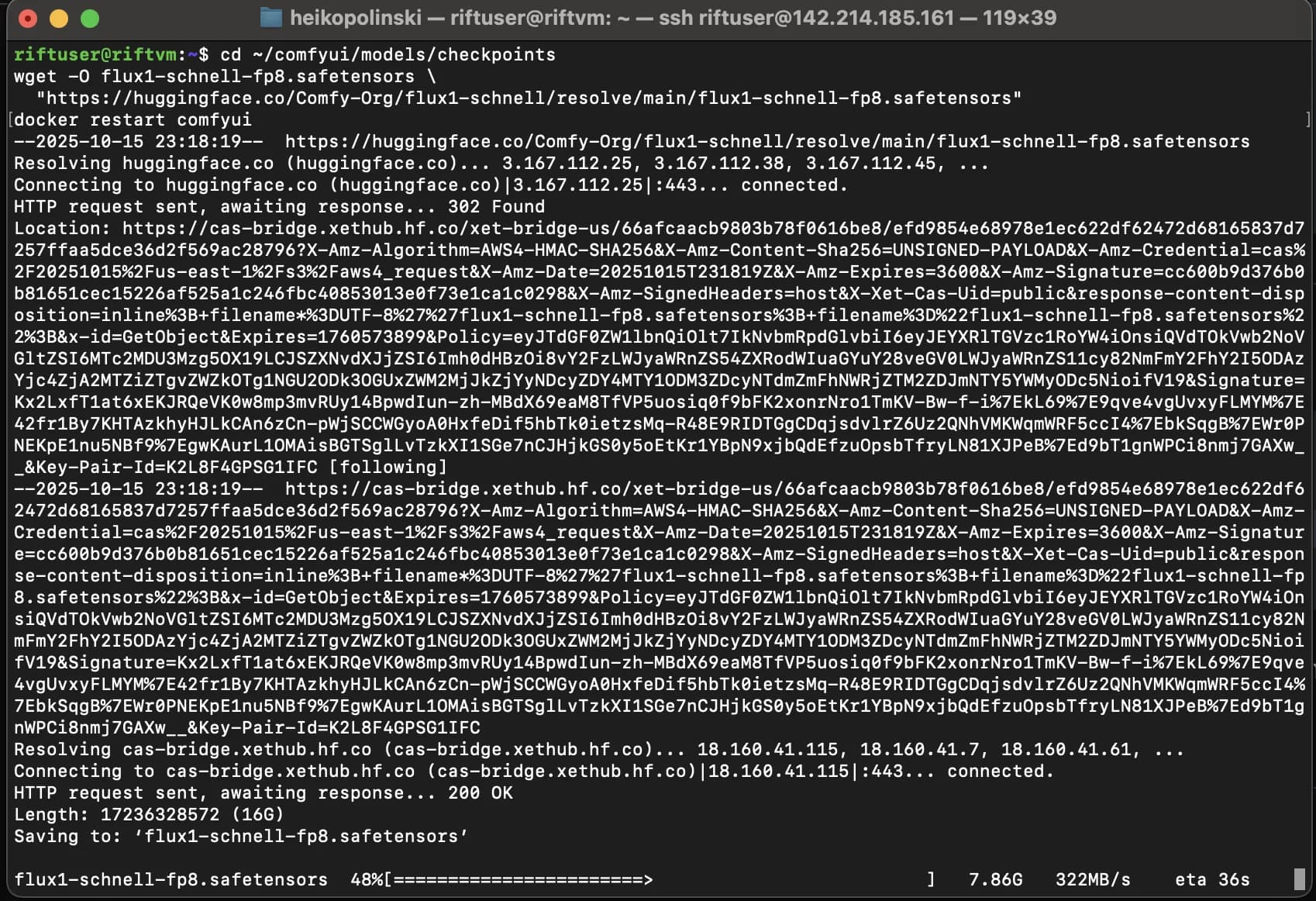
cd ~/comfyui/models/checkpoints
wget-O flux1-schnell-fp8.safetensors \"https://huggingface.co/Comfy-Org/flux1-schnell/resolve/main/flux1-schnell-fp8.safetensors"docker restart comfyui
This is the Flux Schnell model, which is great to start with. Obviously you get to choose whichever model you like.
Loading the Flux Schnell checkpoint in ComfyUI
8. Open ComfyUI in your browser
http://<VM_IP>:8188
Replace <VM_IP> with your VM's IP address.
Note: Port Forwarded VMs
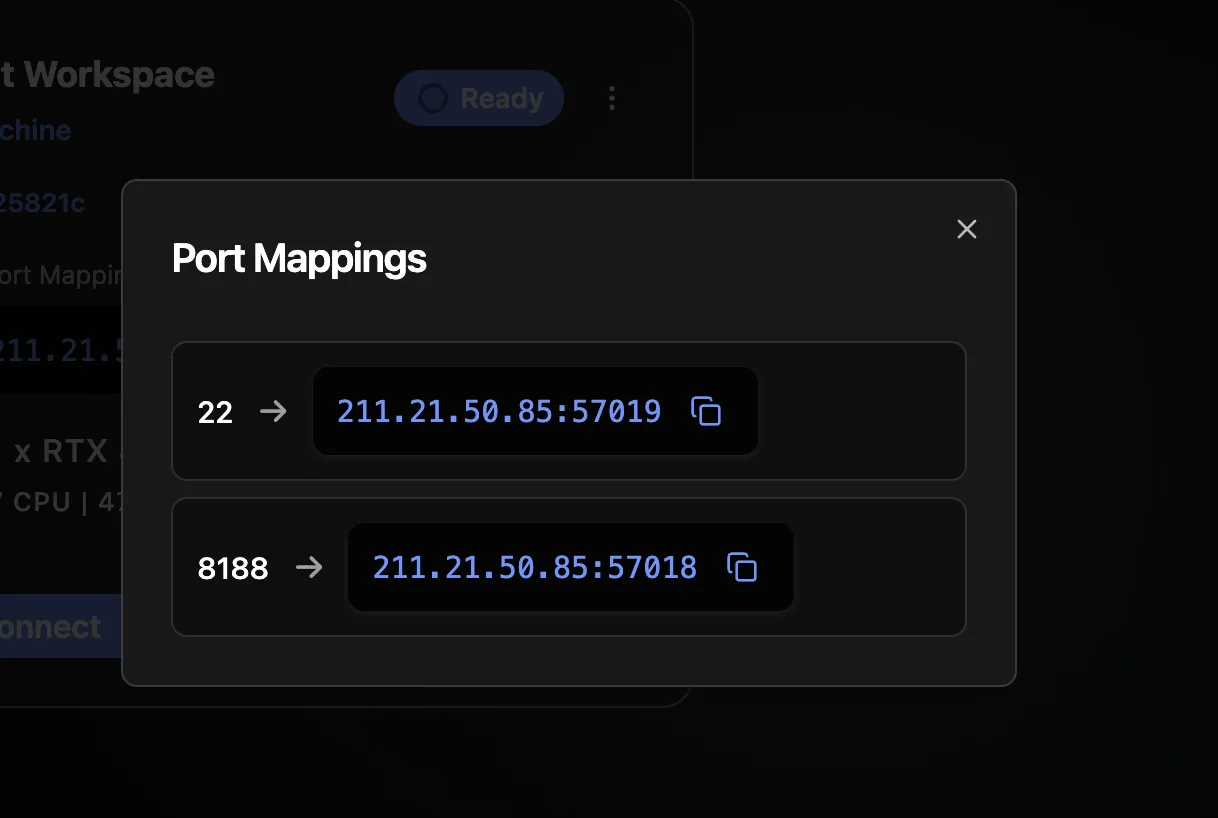
If your provider uses port forwarding (shared public IP), you won't use port 8188 directly. Instead, go to your CloudRift dashboard, click "View all mappings" on your instance, and find the external port mapped to 8188. Then open ComfyUI at http://<IP>:<mapped_port>/ — for example: http://211.21.50.85:57018/
View all port mappings in the CloudRift dashboard
If the port is blocked, go back to your terminal and run:
sudo ufw allow 8188/tcp
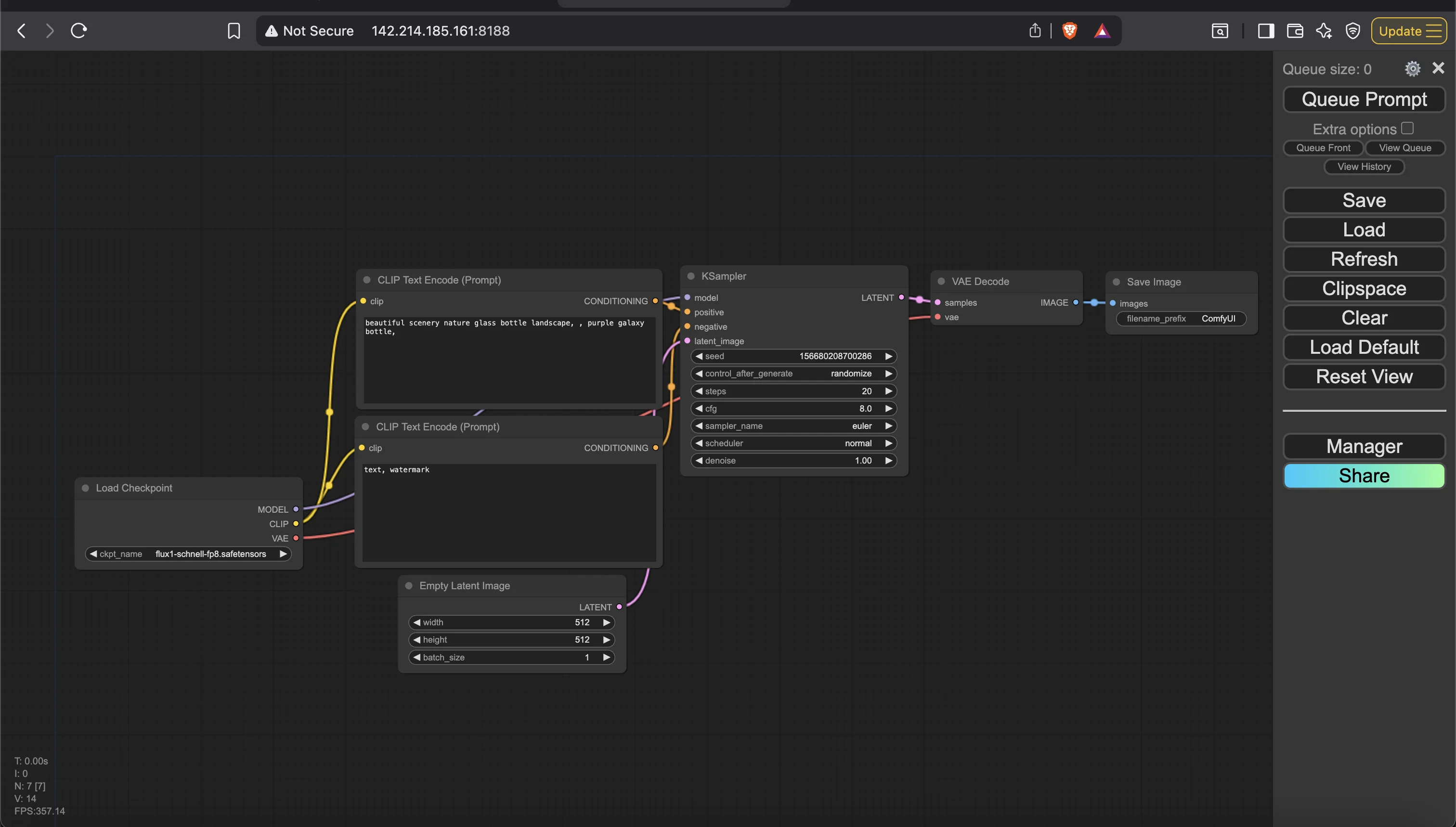
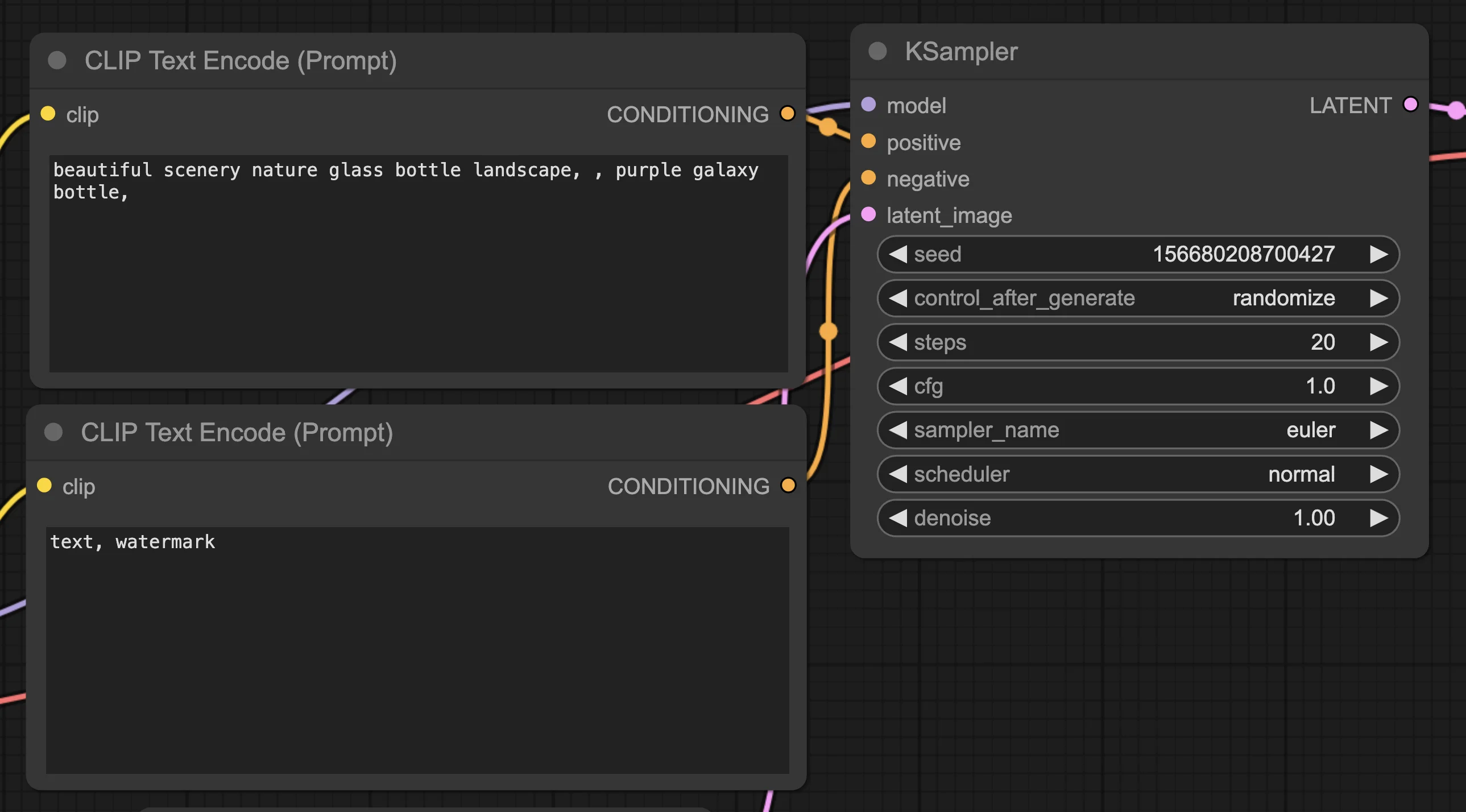
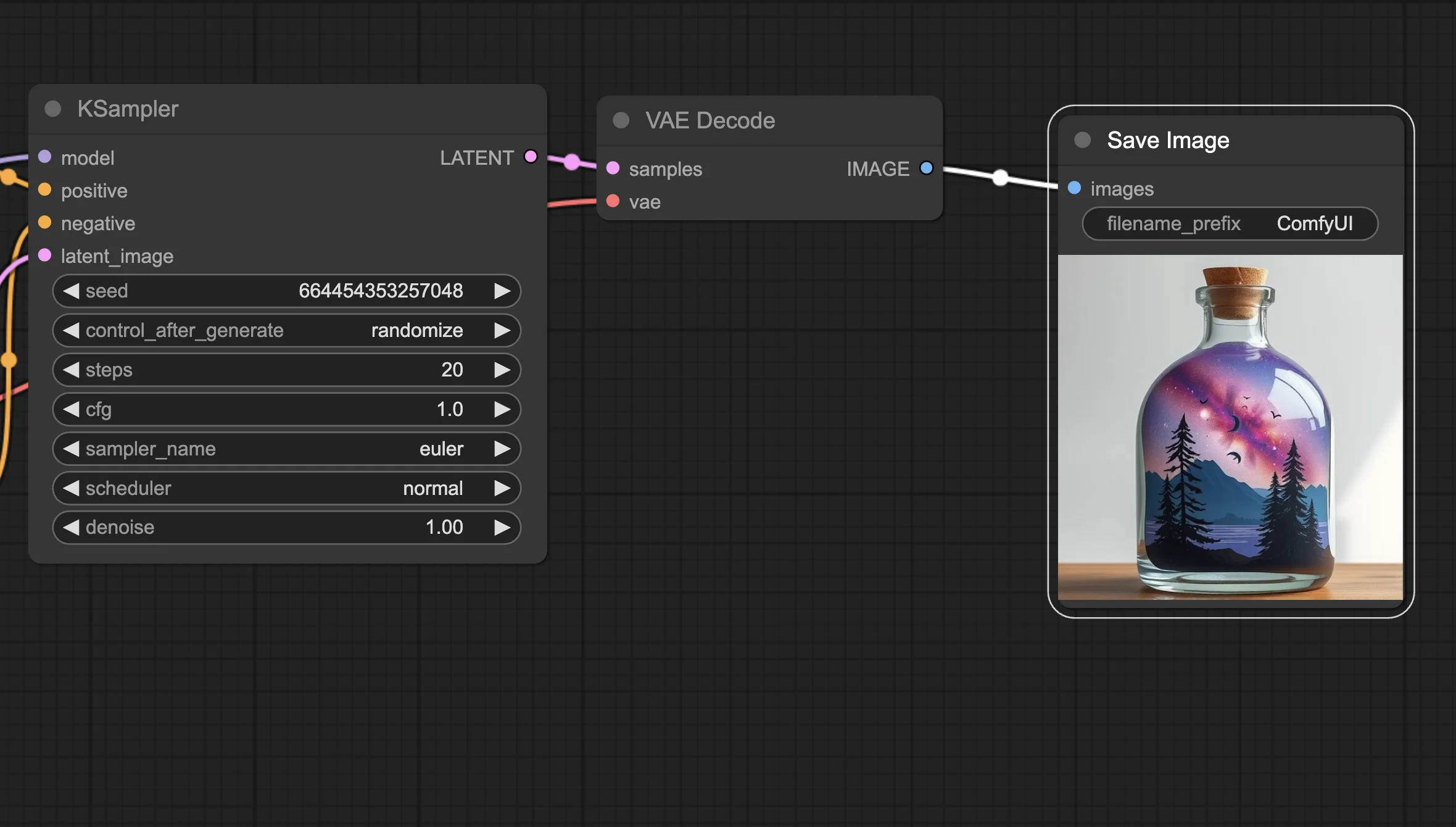
Once ComfyUI loads, you'll see the default workflow. You can adjust your prompt, set the CFG to 1 for the Flux Schnell model for best results, and click "Queue Prompt" to start generating images.
ComfyUI default workflow interfaceAdjusting the prompt and CFG settingsYour first generated image output
9. Optional management
Stop the container:
docker stop comfyui
Start it again:
docker start comfyui
Remove the container completely:
dockerrm comfyui
Result
ComfyUI runs on your GPU VM with the Flux Schnell FP8 checkpoint loaded.
Add more models to ~/comfyui/models/checkpoints or build your workflow directly in the browser.
TL;DR
Question: How do I install and run ComfyUI on a GPU VM on CloudRift?
Answer: Connect to your Ubuntu 22.04 or 24.04 VM, verify the GPU with nvidia-smi, install Docker, fix permissions using sudo usermod -aG docker $USER, then run the ComfyUI Docker image and add your model checkpoint. Access it at http://<VM_IP>:8188.