How to Rent a GPU for ComfyUI: Complete Setup Guide
By Heiko Polinski•April 17, 2025
TutorialsComfyUIGPU Rental
A no-nonsense guide to renting powerful GPUs, launching ComfyUI, and actually enjoying the ride.
When you first dip your toes into the world of AI tools and AI image generation, everything feels like a smooth ride. You type a prompt into ChatGPT, and there you go — instant results. You show it around — applause. You click around in Midjourney or Runway, and bam: pretty images, stuff is moving, no assembly required.
But eventually, you hit a point where you want to go a little deeper.
You don’t just want to use AI — you want to build with it. Control it. Understand (at least to a degree) how the magic happens. For me, this thought led me down the rabbit hole of CivitAI and Hugging Face (see my last article here) and I also discovered tools like ComfyUI.
What Is ComfyUI?
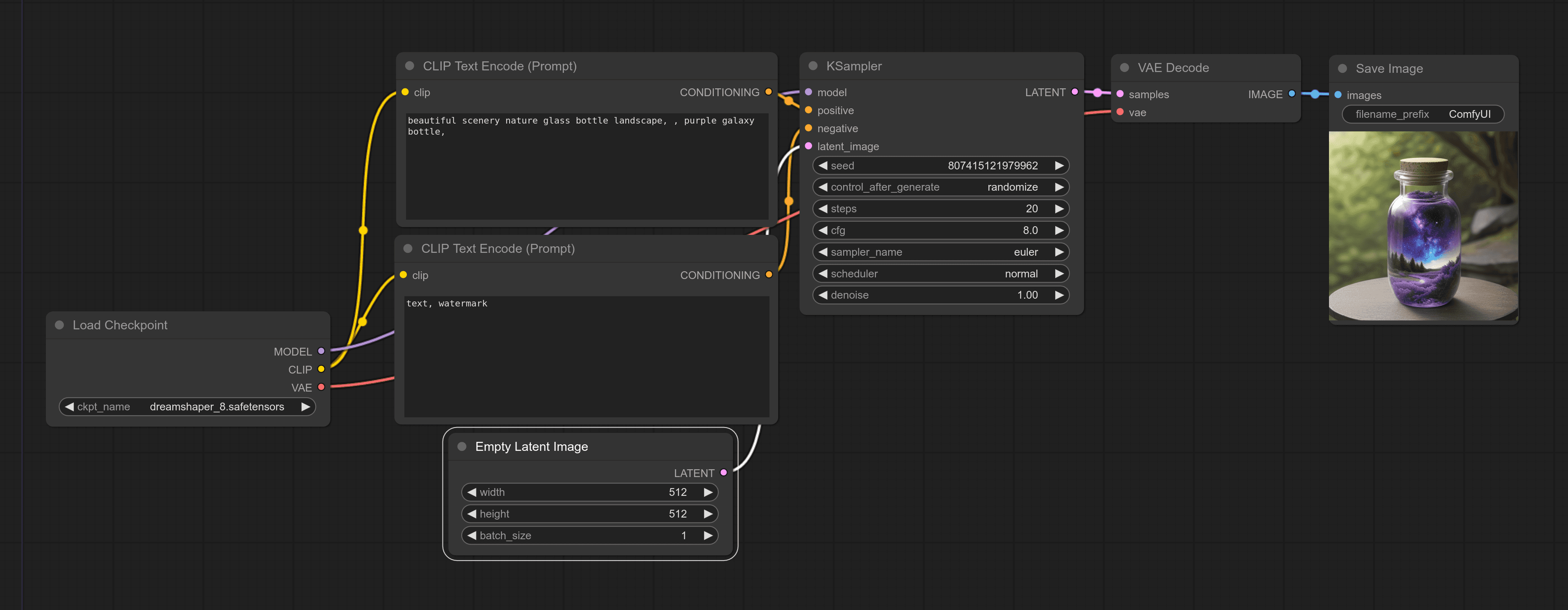
ComfyUI is a free, open-source tool for generating images and videos with AI — built around a modular, node-based interface. Instead of just typing a prompt and hoping the AI gets it right, youdesign your own image generation workflowsstep by step.
ComfyUI is an image generation tool, that’s free to use. Its node-based UI is not nearly as hard to get into as you might think.
Each block (or “node”) in ComfyUI represents a part of the process — loading a model, interpreting a prompt, tweaking parameters, generating the image — and you can connect and customize them however you like.
What makes ComfyUI stand out:
It's free and open-source, meaning anyone can use, extend, or modify it, no subscription needed.
It gives you much more control over the generation process.
It's powered by Stable Diffusion, but it doesn't lock you into one way of working.
If you’ve ever wanted to peek under the hood of AI image generation and actually build your own system — ComfyUI lets you do that, without needing to pay for some closed, black-box platform.
The node-based interface might seem a bit daunting at first, but you’ll realize quickly, that ComfyUI is a modular, visual sandbox that gives youactual controlover what you create — And that’s where things get exciting.
How to Get Started with ComfyUI
Technically, there’s nothing stopping you from downloading ComfyUI to your computer and running it from there — but get ready to wait. A lot. AI Models like ComfyUI use a lot of your graphics card’s capacity, and if you’re not running a super-high-end gaming setup, things will be slow.
Especially when you're still figuring out what all the settings do, waiting several minutes just to get an image full of artifacts is… less than ideal.
That's why we will be renting out some GPUs to do the heavy lifting for us. Don't worry, it's surprisingly simple and involves no commitment.
When I first got started, this is what came out after 5 minutes of waiting. So better rent a decent GPU.
There are generally two ways to go about it:
One is the just-a-few-clicks-template-way — simple and fast, but with a little more jank.
The other is a manual CLI based setup — with all the power, and all the responsibility that comes with it.
Ready? Let’s go.
Setting Up ComfyUI Using a Template
This one's pretty simple. We'll just rent a GPU and get a link to open a pre-installed version of ComfyUI right after. You can start using it immediately — no setup, no stress. And it really sounds like more commitment than it is. And navigating outconsole is super straightforward.
CloudRift lets you rent high-performance GPUs like NVIDIA’s RTX 4090 and RTX 5090 for a decent hourly price. No long-term commitment — just pay as you go.
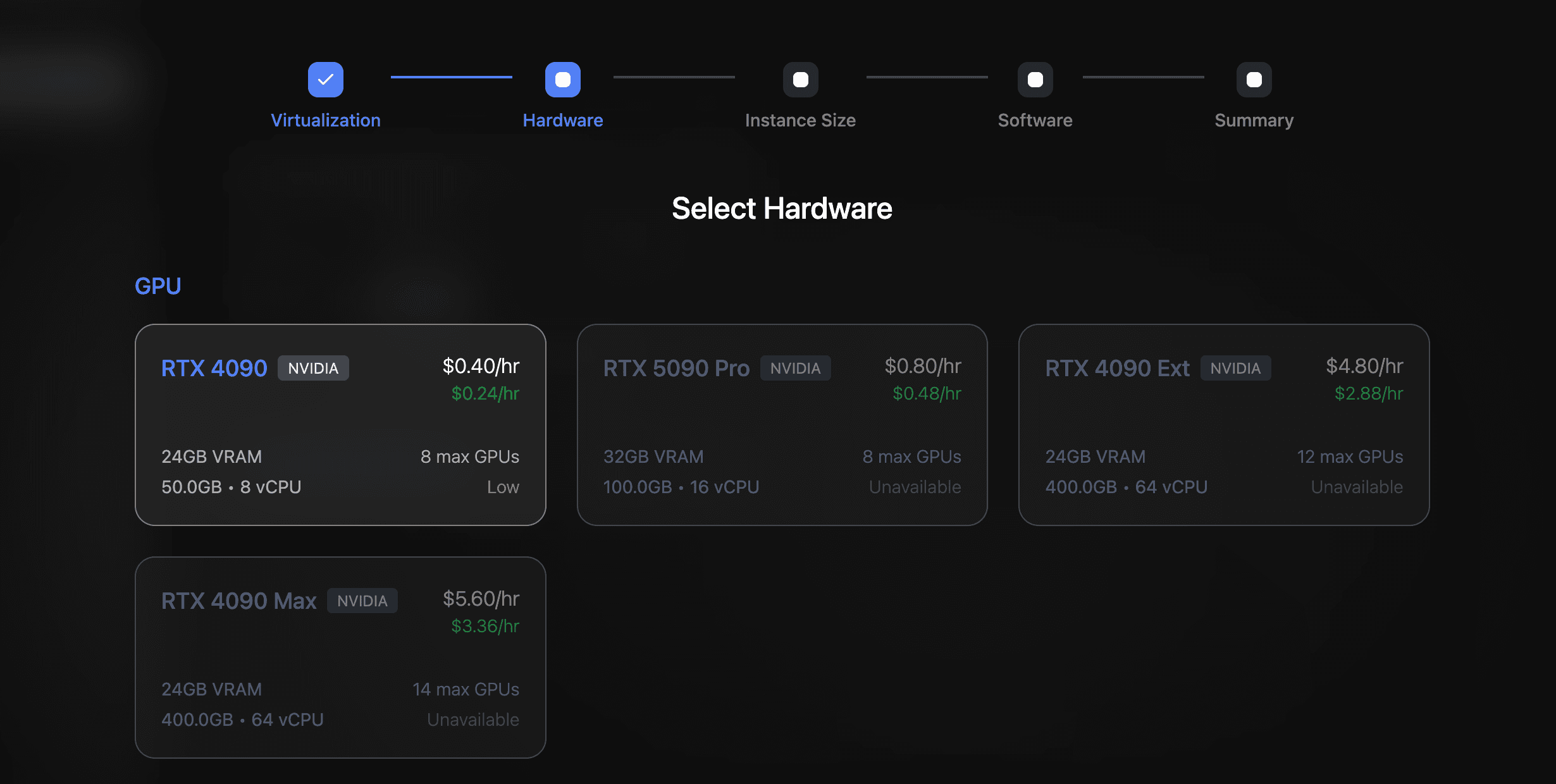
When you’re picking a GPU on CloudRift, the selection might look different to you, depending on what’s available, but an RTX 4090 is always a good choice.
Add credits (10 USD is more than enough to get started).
Click “New” to start setting up your instance.
Select Container Mode.
Pick your GPU (if you’re not sure, start with the cheapest — even low-end ones handle basic workflows surprisingly well).
Under the Select Software tab, choose Recommended.
Look for the template called ComfyUI-FLUX.1-Schnell under Image Generation. Select it and confirm.
Click “Deploy” and wait a minute while your instance spins up.
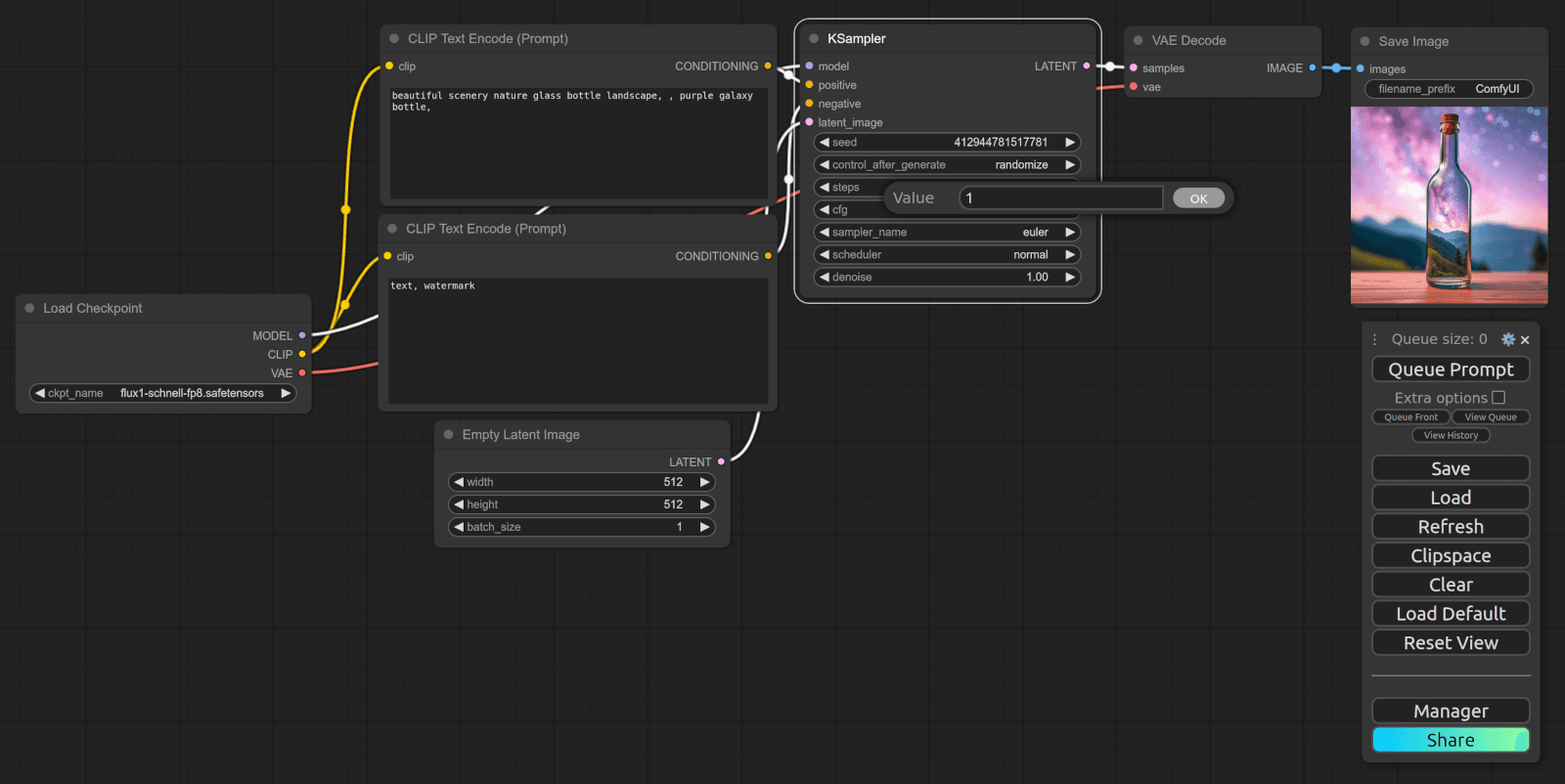
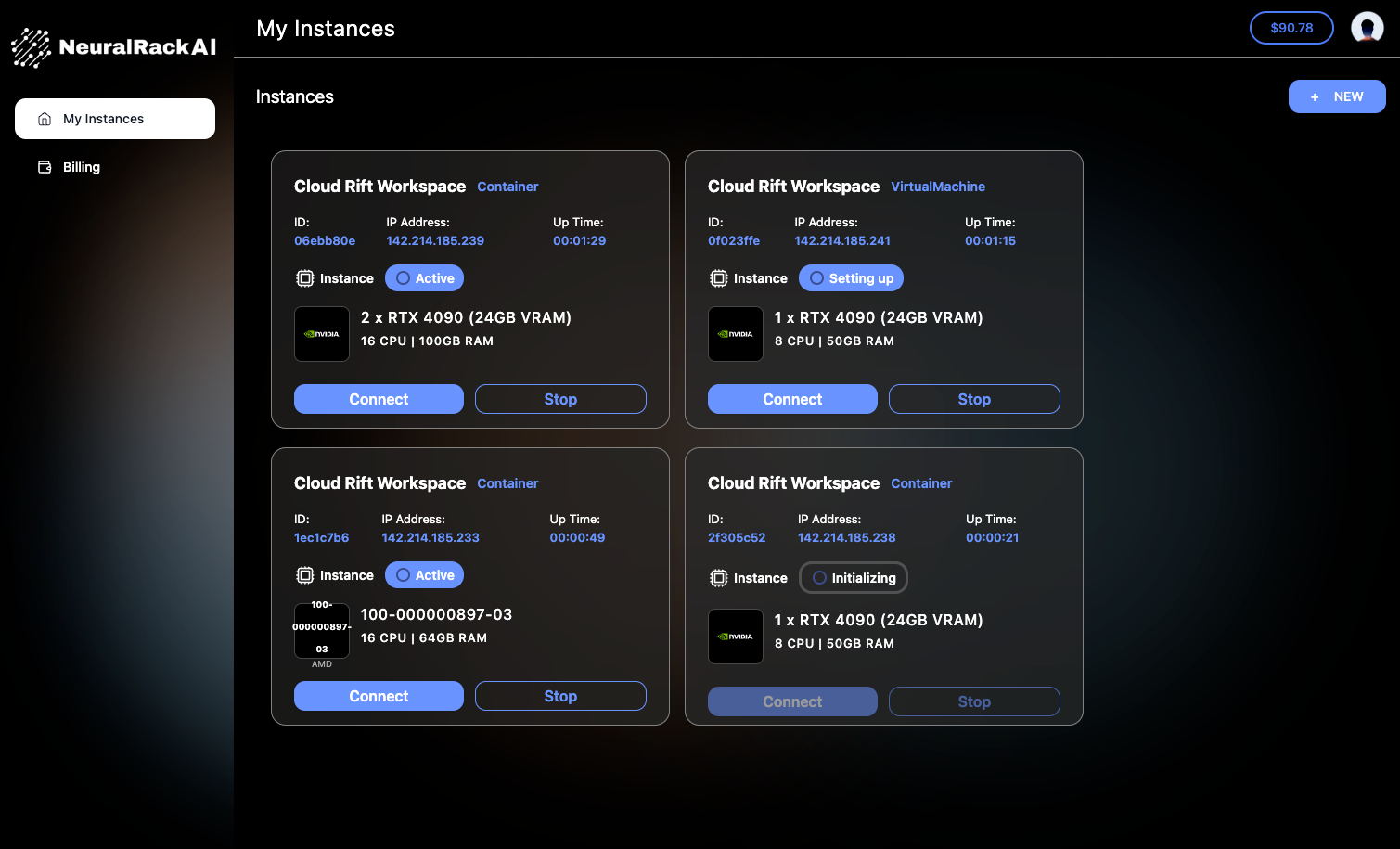
In the dashboard, you'll see a summary of your instance — click Connect, then open the link in the window that pops up. There, you'll also find a lot of helpful resources on how to use ComfyUI.
The new browser window that pops up should look a little something like this.
Setting Up ComfyUI on a VM (aka the more hands-on way)
As mentioned before, using the template lets you get started right away. Through the Manager menu in ComfyUI, you can even install updates, additional tools, and plugins relatively easily.
But I found that by setting everything up manually, I got a much better picture of how it all works — and I could be more intentional and precise with my setup.
So, here's the advanced version. Instead of using a pre-configured container, we'll rent a full GPU-powered VM, connect to it via SSH, and set up ComfyUI ourselves using Docker. If you're on a Mac, just open Terminal. On Windows, it's CMD or PowerShell. No extra tools needed.
Let's get our hands dirty.
Step 1: Rent a GPU VM via CloudRift
CloudRift provides GPU rentals that let you rent GPUs like RTX 4090 and RTX 5090 (which are ideal for tools like ComfyUI) for a pretty decent price.
CloudRift provides GPU rentals that let you rent GPUs like RTX 4090 and RTX 5090 (which are ideal for tools like ComfyUI) for a pretty decent price.
Add credits (10 USD is more than enough to get started).
Click "New" to start setting up your instance.
Select "VM" under the Virtualization step.
Pick your GPU (if you're not sure, start with the cheapest — even low-end ones handle basic workflows surprisingly well).
Choose Ubuntu 24.04 as your OS.
Click "Deploy" and wait a moment.
Note: Port Forwarding Setup
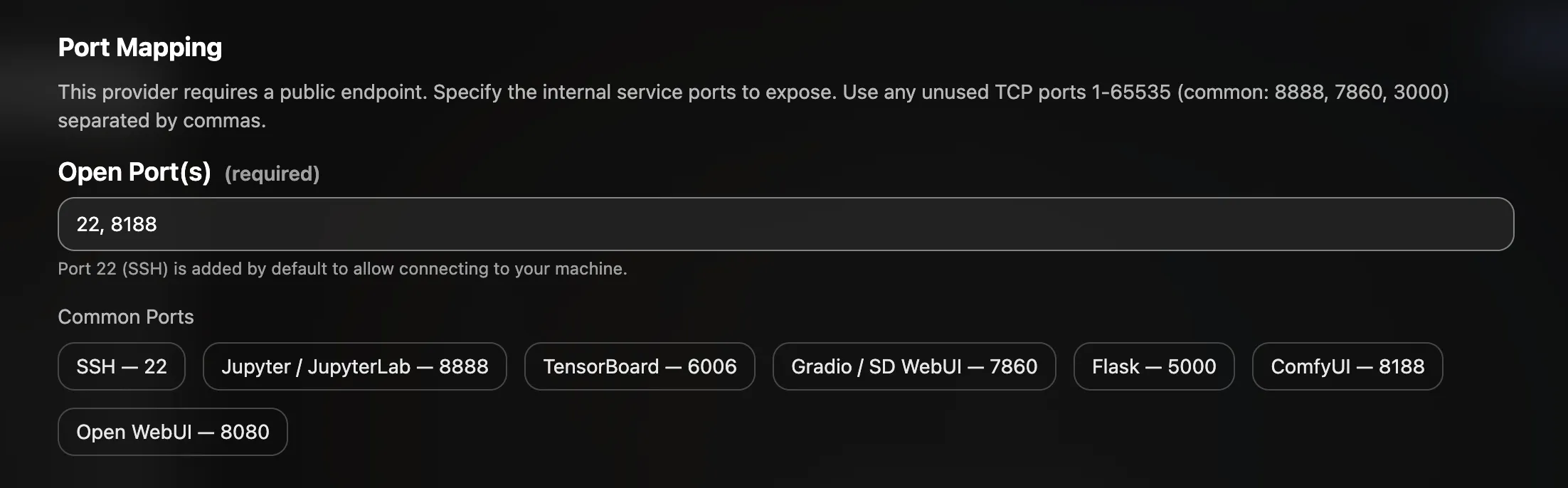
Some of our datacenter providers use shared public IPs with port forwarding. In this case, during the Software step of the rental process, you'll see a Port Mapping section. Make sure to add port 8188 there — this is the port ComfyUI uses, and it needs to be exposed for you to access the UI in your browser.
Add port 8188 in the Port Mapping section during VM setup
Step 2: Connect to your VM
Once your VM is running, open your terminal and connect via SSH:
ssh riftuser@<VM_IP>
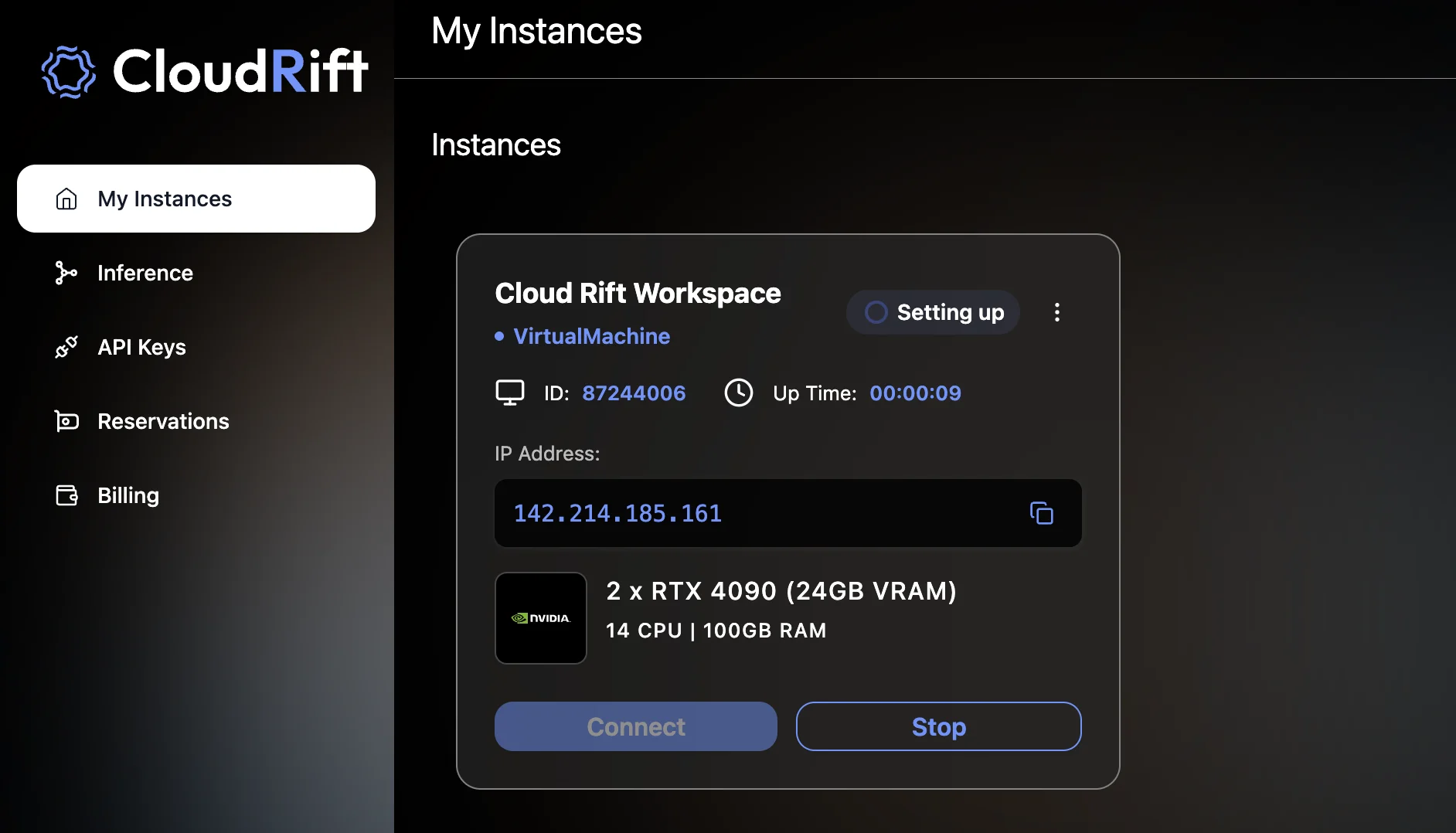
Replace <VM_IP> with your VM's IP address — you'll find it in your CloudRift dashboard.
Find your VM's IP address in the CloudRift dashboard
Troubleshooting: Host Key Verification Failed
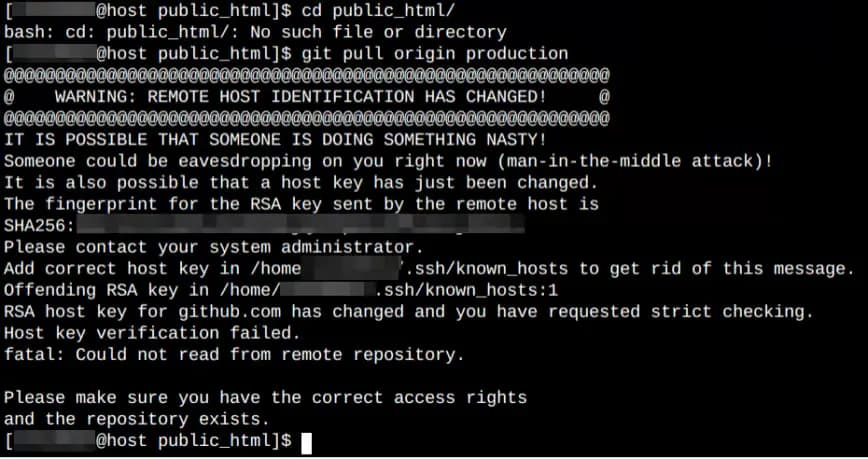
Fix Host Key Verification Failed
Sometimes when connecting, your terminal may throw a "Host Key Verification Failed" error with a message like "Someone could be eavesdropping on you right now (man-in-the-middle attack)!" or "It is also possible that a host key has just been changed." This typically happens when a VM's IP address has been reassigned or the server has been re-provisioned.
Fix it: Remove the old host key from your known_hosts file:
ssh-keygen -R"[<IP>]:<port>"
Replace <IP> and <port> with your VM's IP address and SSH port. For example: ssh-keygen -R "[211.21.50.85]:57019"
If your VM uses a standard SSH port (22) without port forwarding, you can simply use: ssh-keygen -R <IP>
Then try connecting again. You'll see a prompt asking to confirm the new key — type yes and press Enter.
Then fix permissions so you don't need sudo for every Docker command:
sudousermod-aGdocker$USERnewgrp dockerdockerps
An empty list confirms Docker is working.
Step 4: Launch ComfyUI
Now for the good part. Run these commands to create a directory for your models and launch ComfyUI:
mkdir-p ~/comfyui/models/checkpoints
docker run -d\--name comfyui \--gpus all \-p8188:8188 \-eWEB_ENABLE_AUTH=false \-v ~/comfyui/models:/opt/ComfyUI/models \ ghcr.io/ai-dock/comfyui:latest-cuda
You'll see Docker pulling the image — that's normal. Give it a minute or two.
Let's break down what's happening:
docker run -d: Runs the container in the background (so it keeps running even if you close the terminal).
--gpus all: Gives the container access to your GPU.
-p 8188:8188: Opens port 8188 so you can access ComfyUI via browser.
-e WEB_ENABLE_AUTH=false: Disables the login screen for simplicity.
-v ~/comfyui/models:/opt/ComfyUI/models: Mounts a local folder for your models, so they persist even if you restart the container.
ghcr.io/ai-dock/comfyui:latest-cuda: The Docker image for ComfyUI.
Step 5: Download a Checkpoint
Before generating images, you need a checkpoint — a trained model that tells ComfyUI how to turn your prompts into images. Think of it like the "brain" of the operation. If ComfyUI is the body, the checkpoint is what actually knows what to draw.
We'll download the Flux Schnell FP8 model, which is great to start with:
cd ~/comfyui/models/checkpoints
wget-O flux1-schnell-fp8.safetensors \"https://huggingface.co/Comfy-Org/flux1-schnell/resolve/main/flux1-schnell-fp8.safetensors"docker restart comfyui
Obviously, you can exchange this for any other checkpoint. You can find tons of models on CivitAI or Hugging Face — just download them into ~/comfyui/models/checkpoints and restart the container.
Step 6: Start Generating!
Open your browser and go to:
http://<VM_IP>:8188
Replace <VM_IP> with your VM's IP address.
Note: Port Forwarded VMs
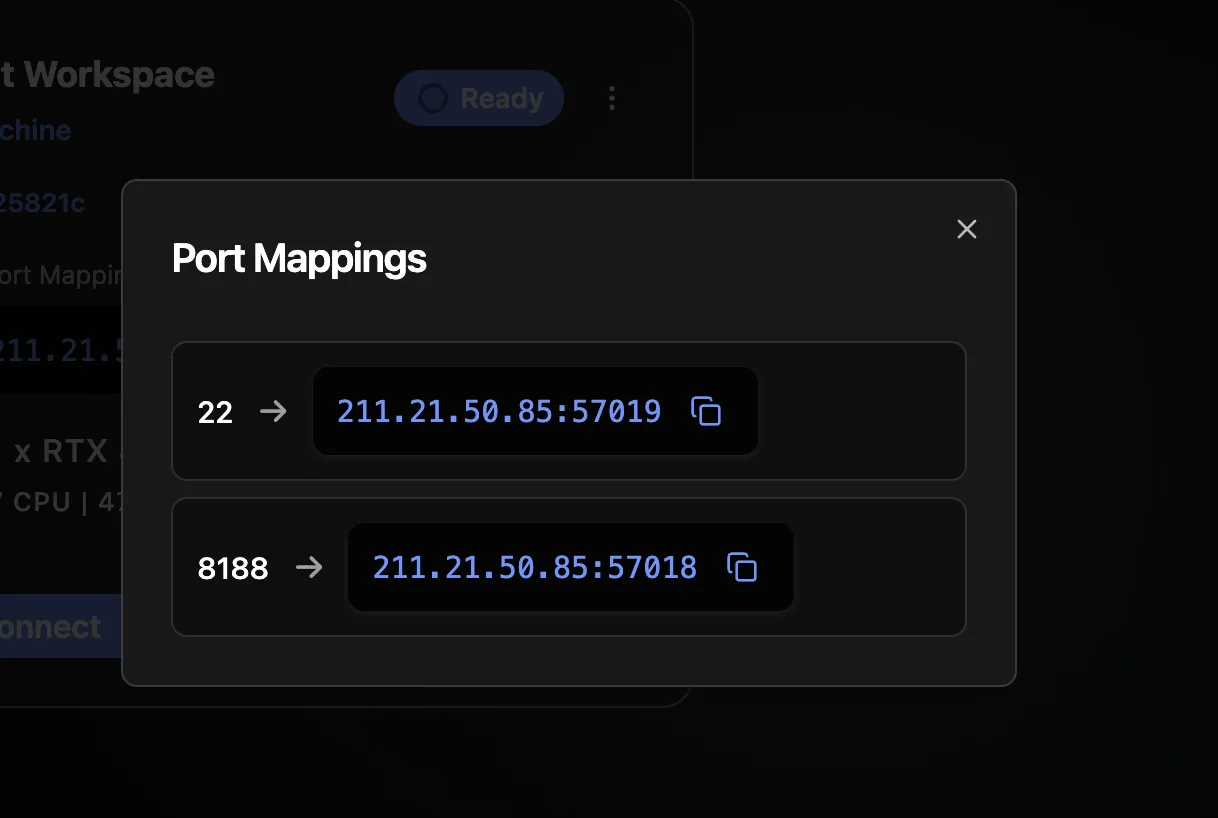
If your provider uses port forwarding (shared public IP), you won't use port 8188 directly. Instead, go to your CloudRift dashboard, click "View all mappings" on your instance, and find the external port mapped to 8188. Then open ComfyUI at http://<IP>:<mapped_port>/ — for example: http://211.21.50.85:57018/
View all port mappings in the CloudRift dashboard
If the port is blocked, run:
sudo ufw allow 8188/tcp
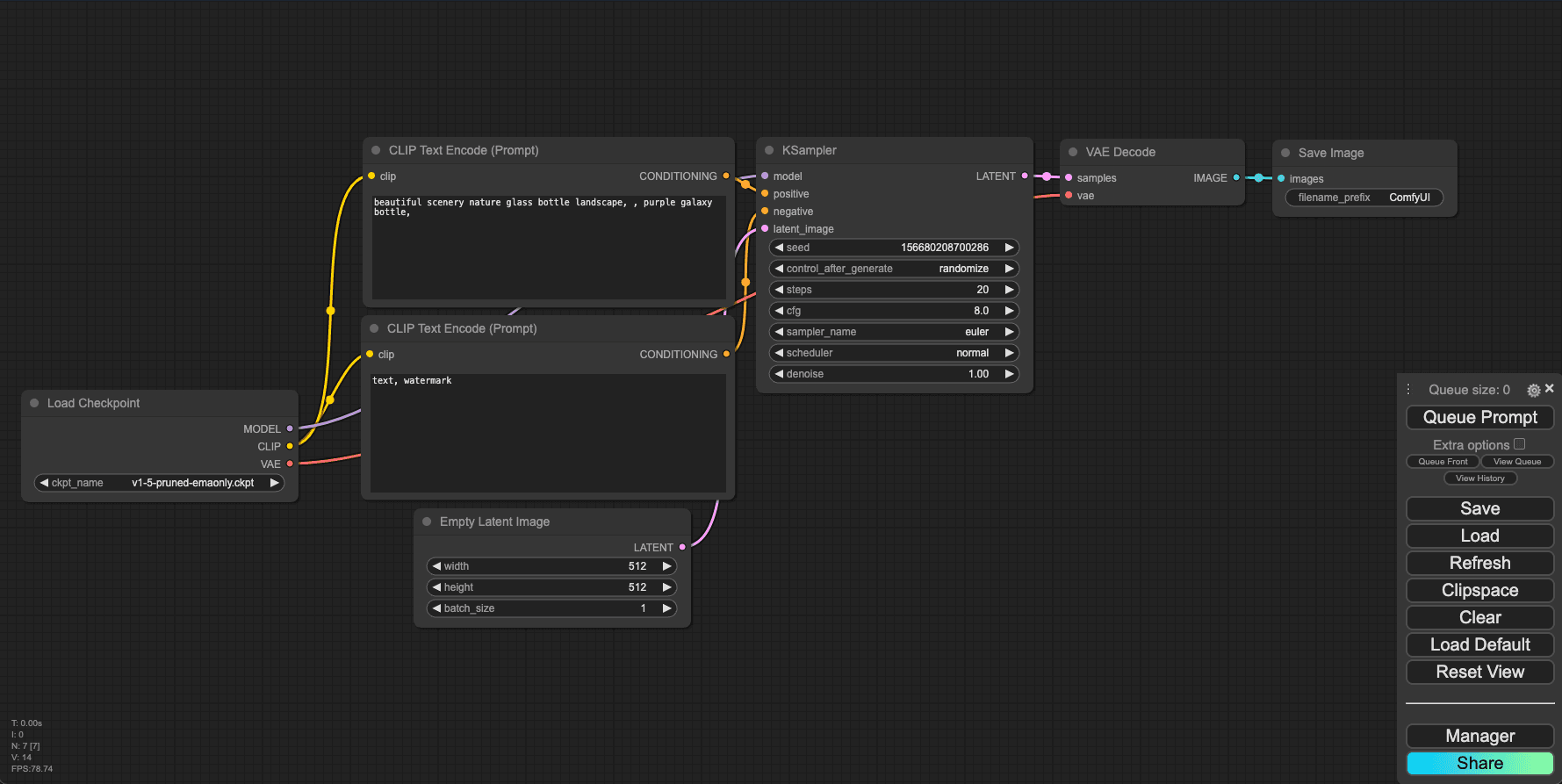
You should see ComfyUI's interface with the default workflow loaded.
ComfyUI web interface home screen with default workflow loaded in browser after successful cloud GPU deployment
Make sure your checkpoint is selected in the "Load Checkpoint" node. Then click the prompt box, enter your prompt, and hit "Queue Prompt". Wait a few seconds, and there it is: your first custom image using ComfyUI + a rented GPU.
I'm a fantasy and video game nerd, so naturally, when presented with the opportunity to create crazy AI generated artwork, my mind goes to something like what you see below. But of course, you can go and put together whatever you fancy (no judgement).
Managing your container
Stop the container:
docker stop comfyui
Start it again:
docker start comfyui
Remove it completely:
dockerrm comfyui
When you're done, don't forget: Shut it down
And one more thing: When you're done, go to your CloudRift console and stop the instance there to avoid charges.
Frequently Asked Questions
Where can I rent a GPU for ComfyUI?
You can rent a GPU for ComfyUI on platforms like CloudRift, which offers on-demand GPU rentals including RTX 4090, RTX 5090, and RTX PRO 6000. Pay only for active runtime with no subscription required.
How much does it cost to rent a GPU for ComfyUI?
GPU rental costs vary by model. RTX 4090 typically starts around 0.39/hour,RTX5090around0.65/hour, and RTX PRO 6000 around $1.29/hour. You only pay when the instance is running.
What GPU do I need for ComfyUI?
ComfyUI works on most GPUs, but RTX 4090, RTX 5090, or RTX PRO 6000 provide excellent performance. For basic workflows, even lower-end GPUs can work, but high-end GPUs significantly speed up image generation.
Can I rent a GPU for ComfyUI by the hour?
Yes, platforms like CloudRift offer hourly GPU rentals with no long-term commitment. Start and stop instances as needed, paying only for active usage time.
TL;DR:
ComfyUI is a free node-based AI image generation tool you can run in the cloud on a rented GPU VM.
Renting a GPU via the CloudRift console gives you the power without the heat (or hardware costs) and significantly increases the speed with which content is created.
You can rent a VM, SSH in, launch ComfyUI with Docker, download a model, and generate your first image in minutes.
The process is surprisingly approachable — even if the terminal looks scary at first.